To export generative AI performance data, open the generative AI report in Search Console, set the date range and any filters, then click Export. The download includes both the chart data and the table data. Values shown as ~ or - in the report become 0 in the file. The report only exports impressions. For clicks, export the main Performance report too and join the two files.
This guide covers the export itself, what’s in the file, the limits to know about, and a short script that does the join for you.
Step by step
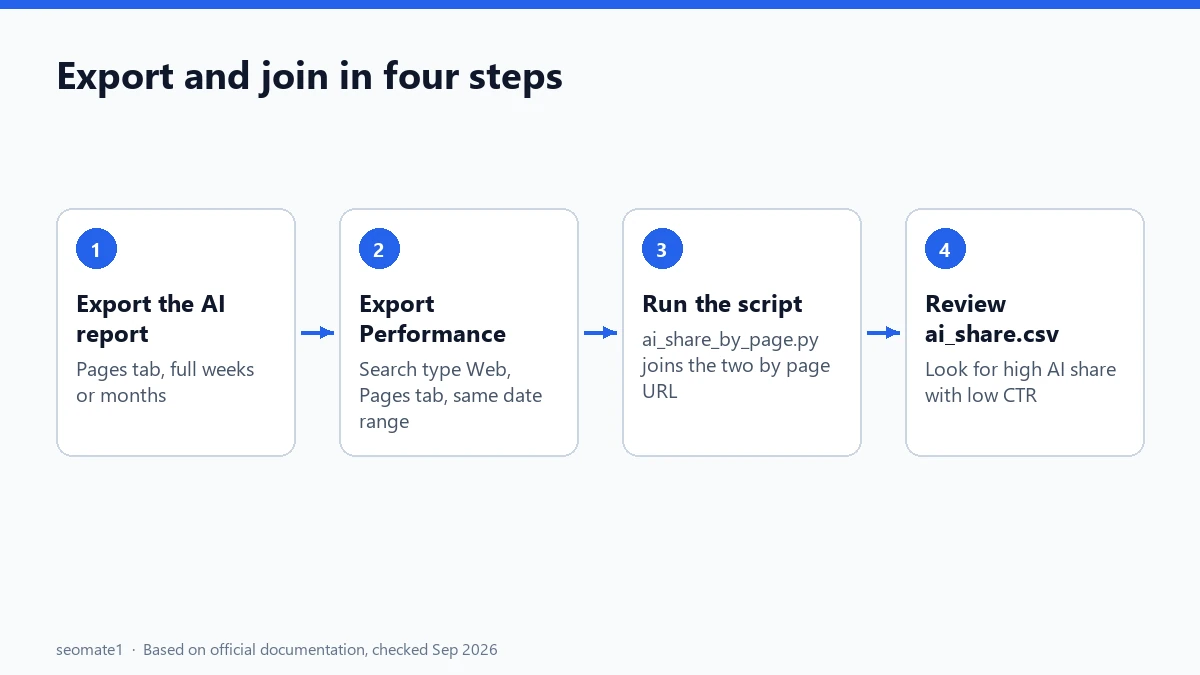
The images below are illustrations of the Search Console screens, drawn using the labels from Google’s help pages. Your screen may look slightly different, but the steps are the same.
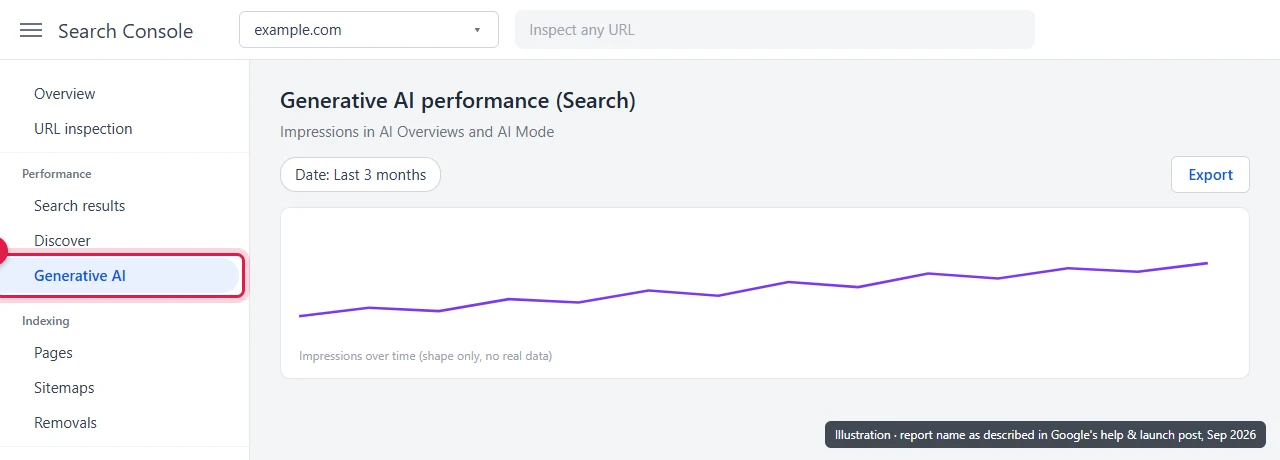
Step 1: Open the generative AI report
In the left menu, look under Performance. Google’s launch post describes separate generative AI views for Search and for Discover. Start with the Search one.
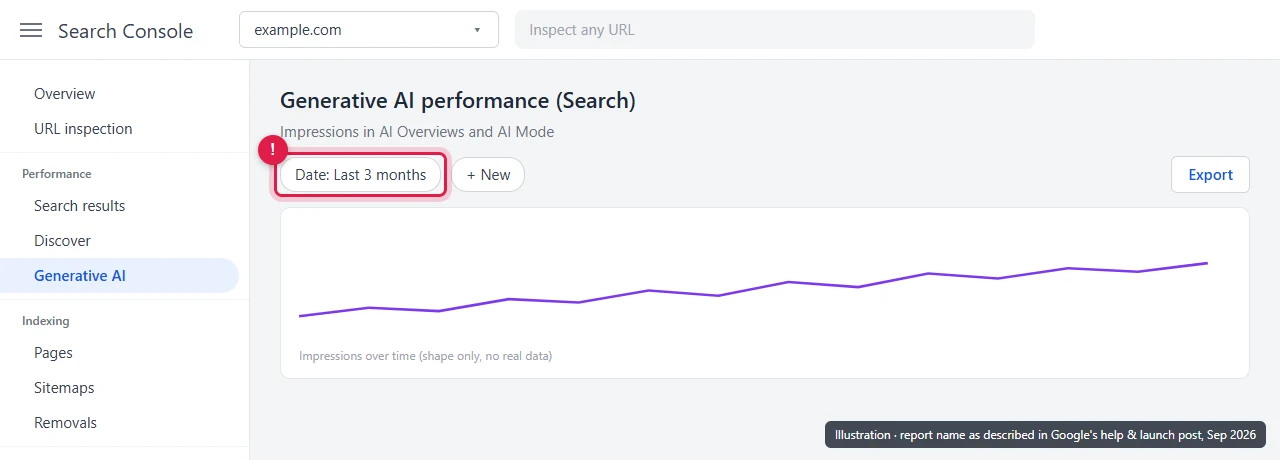
Step 2: Pick the date range
Click the date filter at the top. Use full weeks or full months. The latest day or two is preliminary and can still change.
Step 3: Choose the table tab
The report breaks impressions down by pages, countries, devices, and dates. The export includes the table data, so pick the breakdown you want. For the click comparison later in this guide, choose Pages.
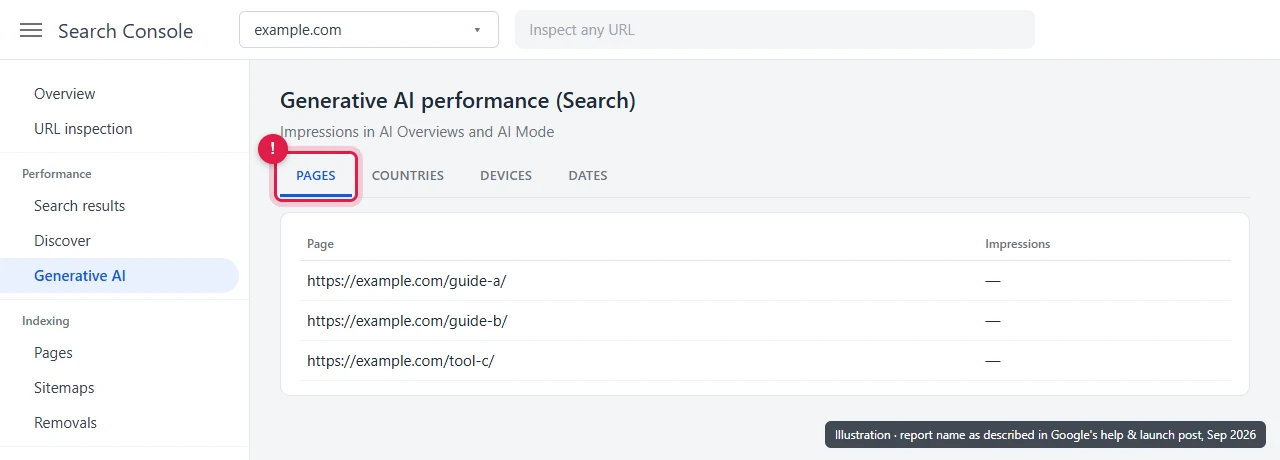
Step 4: Click Export
The Export button sits at the top right of the report. Google says the download includes both the chart data and the table data. Pick the format you prefer from the menu that opens. If you plan to use the script below, choose CSV.
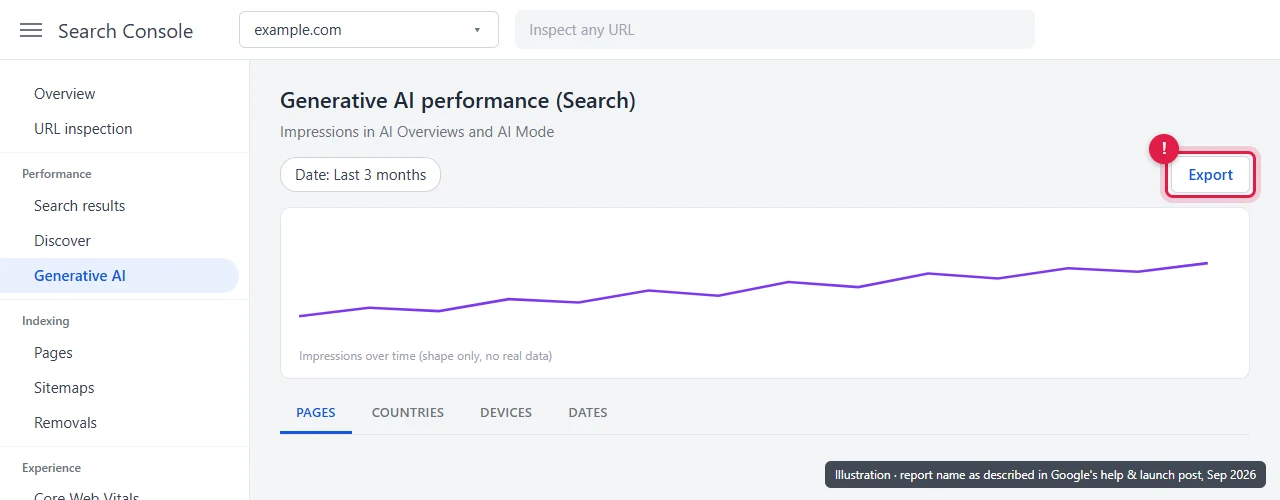
What’s in the export (and what isn’t)
Based on Google’s help page for the report:
| In the export | Not in the export |
|---|---|
| Impressions from AI Overviews and AI Mode | Clicks |
| Pages (grouped by canonical URL) | Queries |
| Countries, dates, devices | Position or CTR |
| Chart and table data | Search Labs experiment data |
Three details affect how you read the file:
- One impression per answer. If several links to your site appear in one AI answer, that’s one impression, not several.
~and-become zero. In the report, these mark very small or missing values. In the export they turn into0, so a0doesn’t always mean “nothing happened”.- 1,000-row limit. The table shows up to 1,000 rows. A large site will not see every page in one export. Filter by folder or country and export several times if you need more.
Search vs Discover
Google’s launch post says there are dedicated generative AI reports for Search and for Discover. Export them separately and don’t add the two together without labelling which is which. Device data is only available for Search.
Join the export with your Performance data
The generative AI export tells you which pages were shown in AI answers. It doesn’t tell you whether those pages still get clicks. For that, you need the main Performance report.
Here’s how to join them:
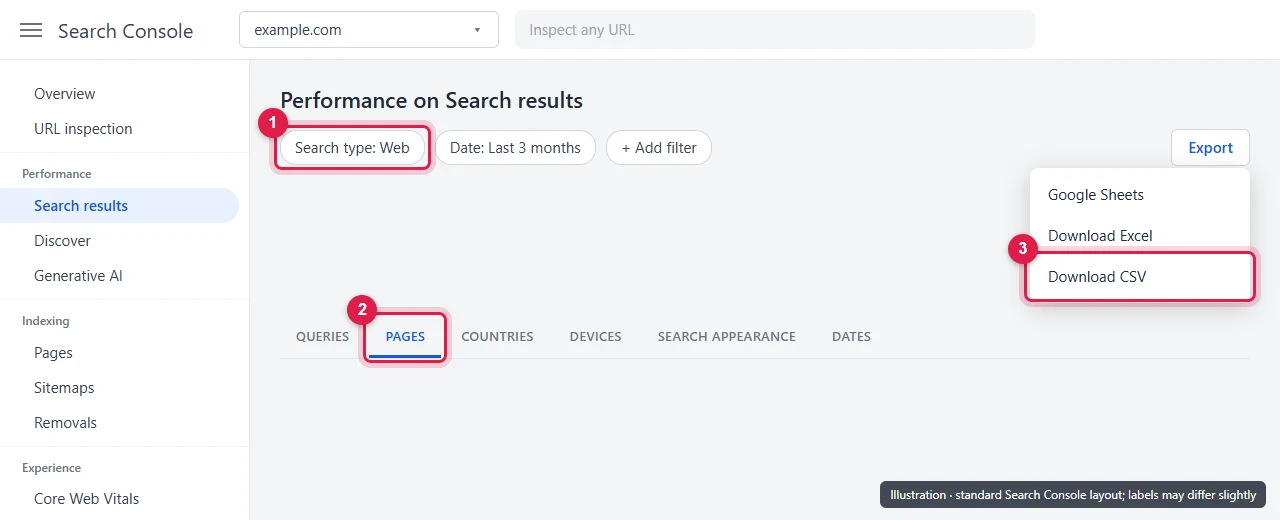
- Open Performance → Search results. Check that the search type is Web, and set the same date range as your AI export.
- Open the Pages tab, then click Export → Download CSV.
- Run the script below on both files.
The script works with either a CSV file or the ZIP file Search Console downloads. It uses only standard Python, so there’s nothing to install.
#!/usr/bin/env python3
"""Join a Search Console generative AI export with a Performance (Web) export, page by page.

Usage:
    python ai_share_by_page.py --ai genai-export.zip --web performance-export.zip --out ai_share.csv
"""
import argparse, csv, io, re, zipfile


def read_pages_table(path):
    if path.lower().endswith(".zip"):
        with zipfile.ZipFile(path) as z:
            names = [n for n in z.namelist() if n.lower().endswith(".csv")]
            pages = [n for n in names if "page" in n.lower()] or names
            text = z.read(pages[0]).decode("utf-8-sig")
    else:
        with open(path, encoding="utf-8-sig") as f:
            text = f.read()
    return list(csv.DictReader(io.StringIO(text)))


def find_col(row, *words):
    for col in row:
        if any(w in col.lower() for w in words):
            return col
    raise SystemExit(f"No column matching {words} in: {list(row)}")


def num(value):
    value = (value or "").replace(",", "").replace("%", "").strip()
    return float(value) if re.fullmatch(r"-?\d+(\.\d+)?", value) else 0.0


def main():
    ap = argparse.ArgumentParser()
    ap.add_argument("--ai", required=True)
    ap.add_argument("--web", required=True)
    ap.add_argument("--out", default="ai_share.csv")
    a = ap.parse_args()

    ai_rows, web_rows = read_pages_table(a.ai), read_pages_table(a.web)
    ai_page, ai_imp = find_col(ai_rows[0], "page", "url"), find_col(ai_rows[0], "impression")
    w_page, w_imp = find_col(web_rows[0], "page", "url"), find_col(web_rows[0], "impression")
    w_clk = find_col(web_rows[0], "click")

    web = {r[w_page].strip(): (num(r[w_imp]), num(r[w_clk])) for r in web_rows}
    out = []
    for r in ai_rows:
        page = r[ai_page].strip()
        ai = num(r[ai_imp])
        w_i, w_c = web.get(page, (0.0, 0.0))
        out.append({
            "page": page,
            "ai_impressions": int(ai),
            "web_impressions": int(w_i),
            "web_clicks": int(w_c),
            "web_ctr_%": round(100 * w_c / w_i, 2) if w_i else "",
            "ai_share_of_impressions_%": round(100 * ai / w_i, 1) if w_i else "not in web export",
        })
    out.sort(key=lambda r: r["ai_impressions"], reverse=True)

    with open(a.out, "w", newline="", encoding="utf-8") as f:
        w = csv.DictWriter(f, fieldnames=list(out[0]))
        w.writeheader()
        w.writerows(out)
    print(f"Wrote {len(out)} pages to {a.out}")


if __name__ == "__main__":
    main()
Save it as ai_share_by_page.py and run:
python ai_share_by_page.py --ai genai-export.zip --web performance-export.zip
You get ai_share.csv with one row per page. Each row has AI impressions, Web impressions, Web clicks, CTR, and the page’s AI share of impressions.
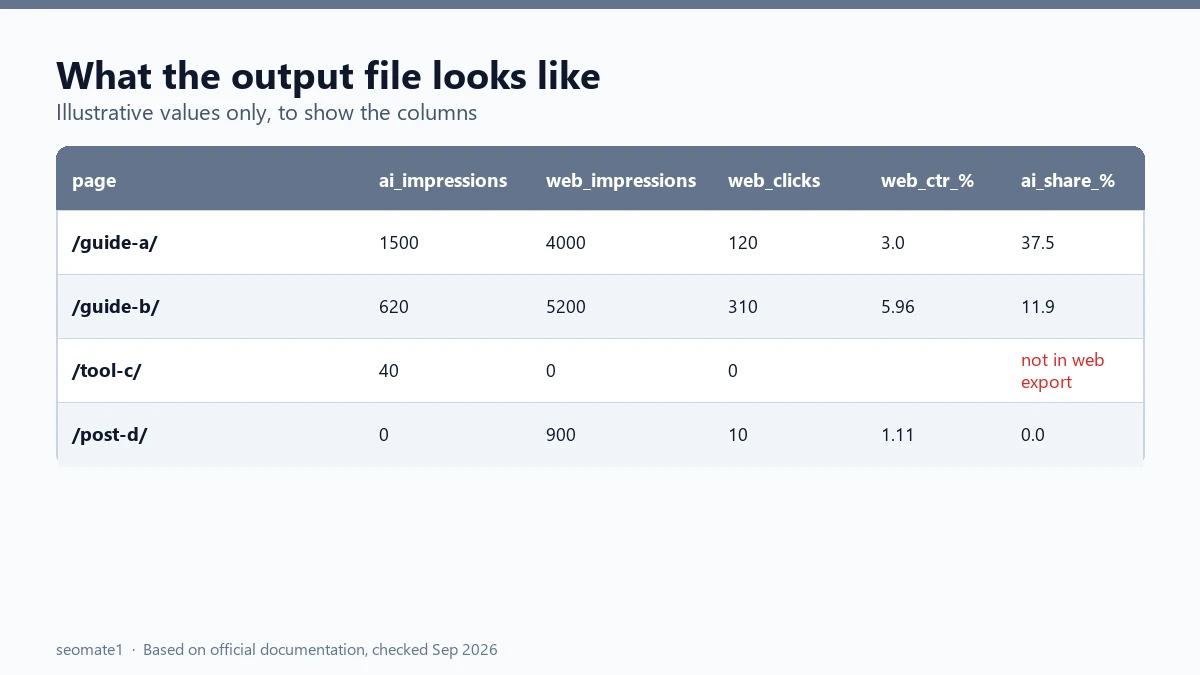
We tested the script on sample files built in the same layout as a Search Console Pages export: quoted numbers like "4,000", ~ values, and ZIP input. It hasn’t been run on every export format, so if a column isn’t found, the error message lists the column names it saw. Adjust the words in find_col to match them.
How to read the results
The AI share is a rough guide, not an exact percentage. The two reports count impressions differently (the AI report counts one per answer per site), so treat it as “how much of this page’s visibility comes from AI features”.
Useful patterns to look for:
- High AI share, low CTR. The page is often shown in AI answers but rarely clicked. Part of the reason is how AI Overview position is counted: every cited source shares the same position, but few get clicked. Consider adding something the AI answer can’t give in full, such as a tool, a template, a worked example, or a screenshot walkthrough.
- High AI share, healthy clicks. AI features are sending you real visits. Protect the page: keep it updated and accurate.
- “Not in web export”. The page appears in the AI export but not in your Performance export for that date range. Check the date ranges match. Check too that the Performance export hit its own 1,000-row limit and cut the page off.
Troubleshooting
- The export is empty or the report is missing. There are eight common reasons the generative AI report doesn’t show, from low AI impressions to an exclude setting inherited from a parent property.
- Page URLs don’t match between the two files. The AI report groups by canonical URL. If your Performance export shows non-canonical versions (with parameters, or
httpvshttps), they won’t join. Fix canonicals first or clean the URLs before joining. - Numbers look too low. Remember that
~and-became0, and the 1,000-row limit may have cut off smaller pages. - A sudden dip for a few days. Check Google’s data anomalies page first. For example, Google logged a data error in the generative AI report for 13–17 August 2026 and restored the data on 21 August. If you exported during a known issue, export that period again after Google fixes it.
FAQ
Can I get the generative AI report through the Search Console API?
At the time of checking, the Search Analytics API documentation doesn’t mention the generative AI report or any AI feature filter. Use the manual export for now.
Why do dates in the export look one day off?
Search Console reports dates in Pacific Time. If you’re in another time zone, a day’s data can look shifted when you compare it with your own analytics.
Should I export before changing the Search generative AI setting?
Yes. If you’re thinking about switching your site to Exclude, export the report first. Once you exclude, the report stops collecting data for your site, so this export is your only record of what AI visibility you had. Before deciding, it’s worth reading what actually changes when you exclude your site.
Is the data in BigQuery bulk export?
Google’s documentation doesn’t describe generative AI report data in the bulk export. Use the manual export from the report.
How often should I export?
Monthly is enough for most sites. Keep each export, because Search Console only keeps a limited history and you’ll want to compare months later. When you compare, remember that AI Mode counts every follow-up question as a new query, which can make month-to-month query data look noisy.
Last checked against Google’s documentation on 23 September 2026. Script tested on sample files on 23 September 2026.
Make it easier to find our SEO, AI search and digital marketing coverage in Google.

Nadir Yaqoob
Nadir Yaqoob is the founder and editor of SEOMate1. He has more than 10 years of experience in SEO, and today focuses on AI search: helping SaaS and e-commerce brands stay visible in Google's AI Overviews and AI Mode, and turn search traffic into leads. He's based in Lahore, Pakistan.