Is the generative AI report missing from your Search Console, or empty? The usual cause is that your site doesn’t yet get enough impressions in AI Overviews or AI Mode. Two other common causes are a Search generative AI setting that excludes your site, sometimes inherited from a parent property, and looking at the wrong property.
Google finished rolling out the report to all websites worldwide on 31 August 2026. Even so, its own help page still says not every property gets it. Below are the eight reasons we know of, in the order worth checking.
First, know what the report actually shows
Many “it’s not working” posts are really about expectations. The report is narrower than the main Performance report.
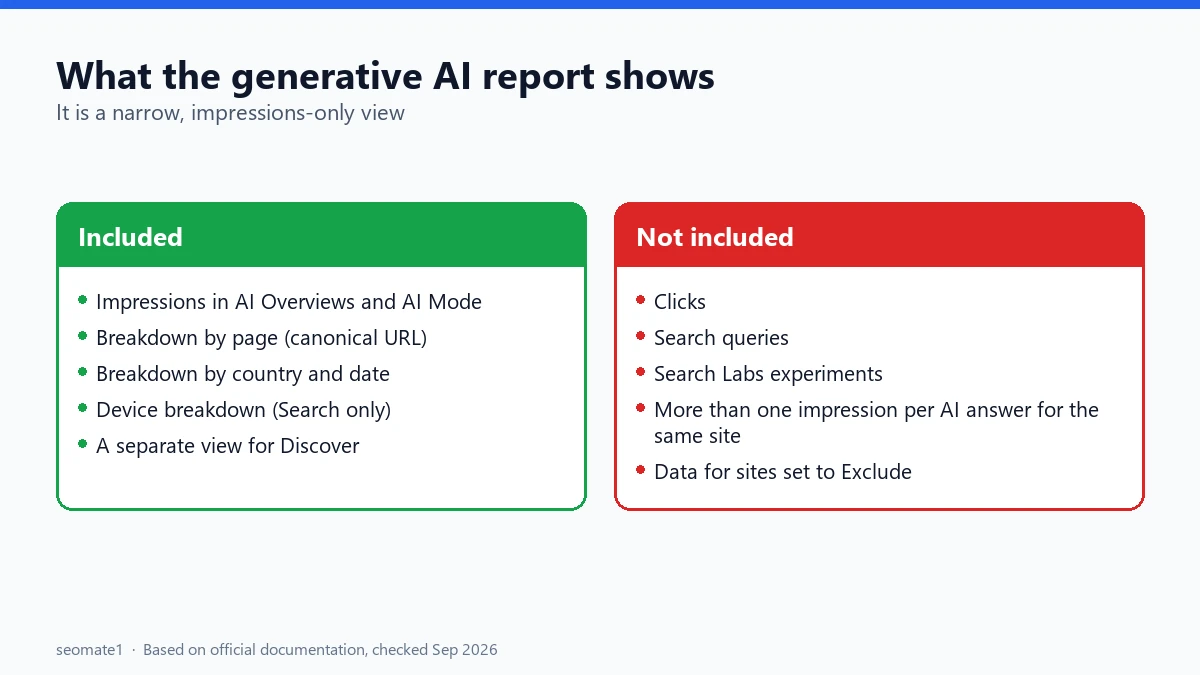
Based on Google’s help page for the report and the launch post:
- It shows impressions. An impression here means a link to your site was shown in an AI feature on Google Search.
- You can break it down by page, country, date, and device.
- It does not show clicks or queries. If you’re looking for “which searches triggered my AI Overview”, this report can’t tell you.
- Several links from your site in one AI answer count as one impression. Position works differently too: an AI Overview takes a single position, shared by every link inside it.
- There’s a separate generative AI view for Discover. Device data is only available for Search results.
So if the report opens and you “can’t find clicks”, nothing is broken. That data isn’t in this report. Clicks from AI features are still counted in the main Performance report, mixed into the Web search type. We explain exactly how AI Mode clicks, impressions and position are counted in a separate guide.
Reason 1: Your site doesn’t have enough AI impressions yet
Google says a site needs “sufficient impressions” in generative AI features before the report appears. It doesn’t publish the number.
This is the most likely reason for a new or small site. If Google rarely shows your pages inside AI Overviews or AI Mode, there’s simply nothing for the report to show. It’s also worth checking that your pages are indexed at all. If many sit under “Crawled – currently not indexed”, start with why that validation often gets stuck.
What to do: Nothing is broken. Check again every few weeks as your content grows. Pages that answer one exact question clearly have a better chance of being linked in AI answers than broad overview pages, but no page is guaranteed a place there.
Reason 2: Your site is excluded from generative AI features
The report only covers sites that are included in Search generative AI features. If your site is set to Exclude, you won’t get data.
What to do: In Search Console, go to Settings → Search generative AI and check the current setting. Google’s control help page says Include is the default, so if you see Exclude, someone changed it.
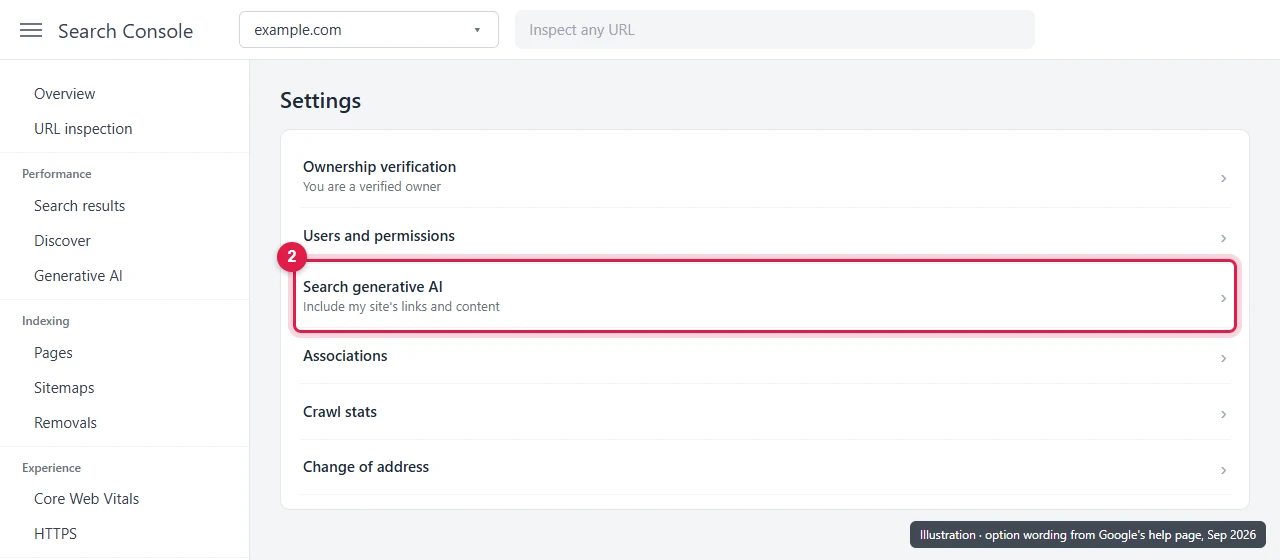
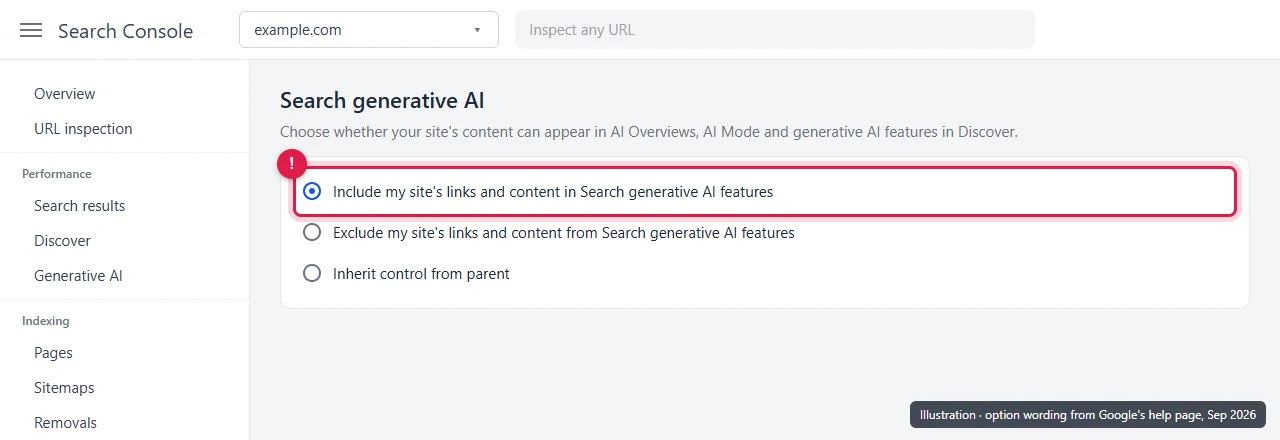
On the next screen you’ll see three options. The first one, Include, should be selected.
Reason 3: The exclude setting was inherited from a parent property
This one catches people out, because you can check your own property and not see anything wrong at first glance.
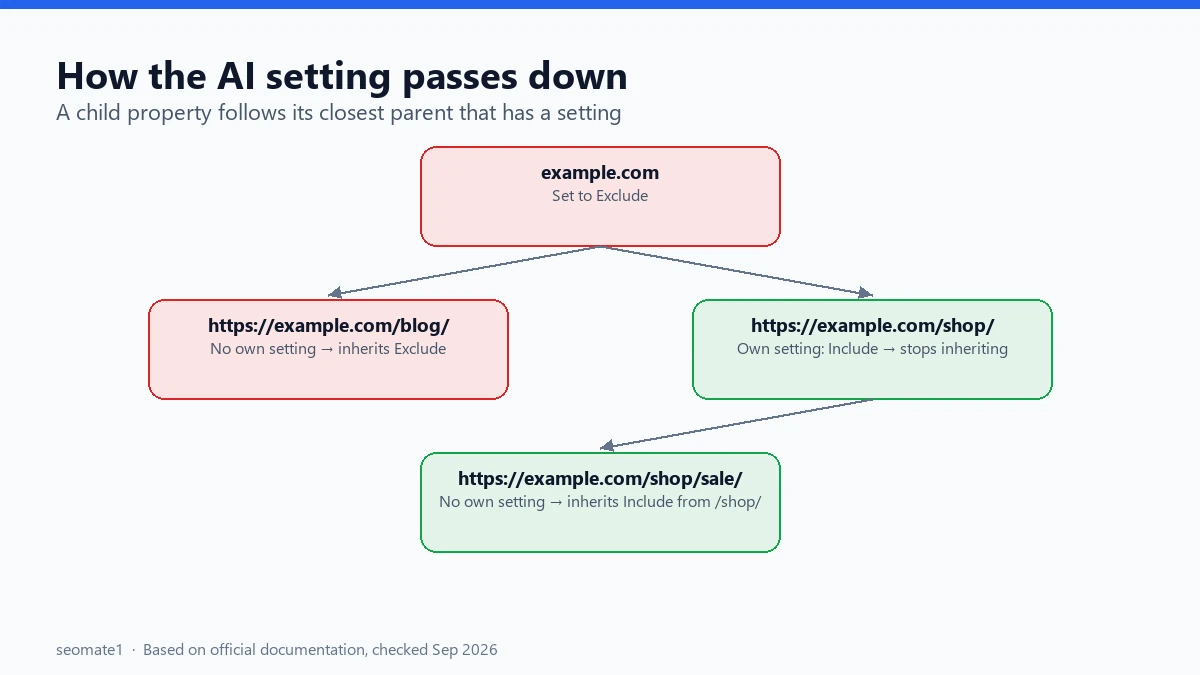
Search Console properties can sit inside each other. For example, example.com (a domain property) is the parent of https://example.com/blog/ (a URL-prefix property). Google says a child property follows the setting of its closest parent that has one configured. If there isn’t one, it follows the top-level domain.
So if someone in your company set example.com to Exclude, your /blog/ property is excluded too, even if you never touched it.
What to do: Check the setting on every parent property you can access, starting from the top-level domain. The control has three options: Include, Exclude, and Inherit control from parent. If your child property is on “Inherit” and a parent excludes, switch the child to Include to override it. There are more worked examples in our guide to how the setting passes to subdomains and URL-prefix properties. Before changing anything, read what Include and Exclude really change. Excluding also affects things like the Preferred Sources label.
Reason 4: Your pages limit snippets
This doesn’t hide the report, but it can shrink the data to almost nothing.
Google’s robots meta tag documentation says nosnippet stops a page’s content being used as a direct input for AI Overviews and AI Mode. max-snippet limits how much can be used. Some SEO plugins and themes add these tags without making it obvious.
What to do: View the source of a few key pages and search for nosnippet and max-snippet. Only remove them if they were added by mistake. Some sites use them on purpose.
Reason 5: You’re looking at the wrong property
This isn’t specific to the AI report. It’s a general Search Console trap. If you have several properties, such as http://, https://, www, a subdomain, or a domain property, the AI data may appear under a different one from the one you opened.
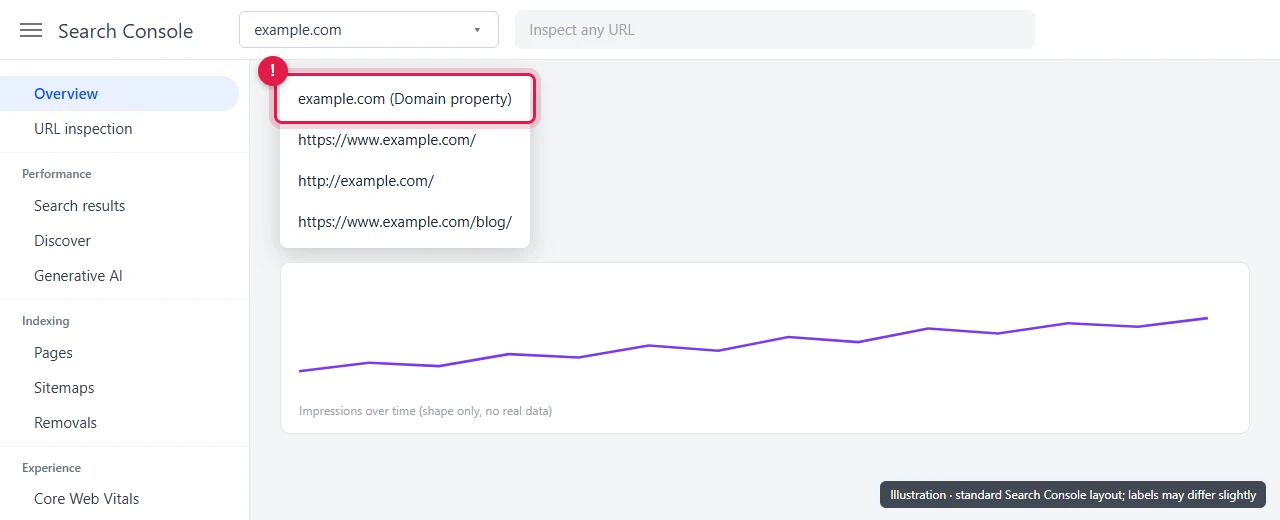
What to do: Click the property name at the top of Search Console to see your list. Open the domain property if you have one, since it covers all versions of the site. If you only have URL-prefix properties, check the one that matches your canonical URLs. The report groups pages by canonical URL.
Reason 6: The newest days are still being collected
Google marks the most recent data as preliminary. It can change over the next few hours and is shown with a dotted line on the chart.
What to do: If only today or yesterday looks empty or low, wait a day before assuming something is wrong. Compare full weeks instead of single days.
Reason 7: A Google data problem
Sometimes the data is missing because of a problem on Google’s side. In August 2026, Google’s data anomalies page recorded that “a logging error caused a decrease in impressions on the Generative AI performance report in Search for data from August 13 – August 17, 2026”. Google restored the missing data on 21 August.
What to do: If impressions suddenly drop for a few days, check the data anomalies page before changing anything on your site. If Google lists an issue for those dates, wait for the fix.
Reason 8: Your property is still waiting for access
Google’s help page still says, “Not all properties have access to the report, as we’re rolling out over time”, even after the worldwide rollout note. If none of the checks above apply, this may simply be a timing issue on Google’s side.
What to do: Wait, and use the “Submit feedback” option in Search Console if you think your property should have it. There’s no setting you can change to switch it on.
Quick checklist
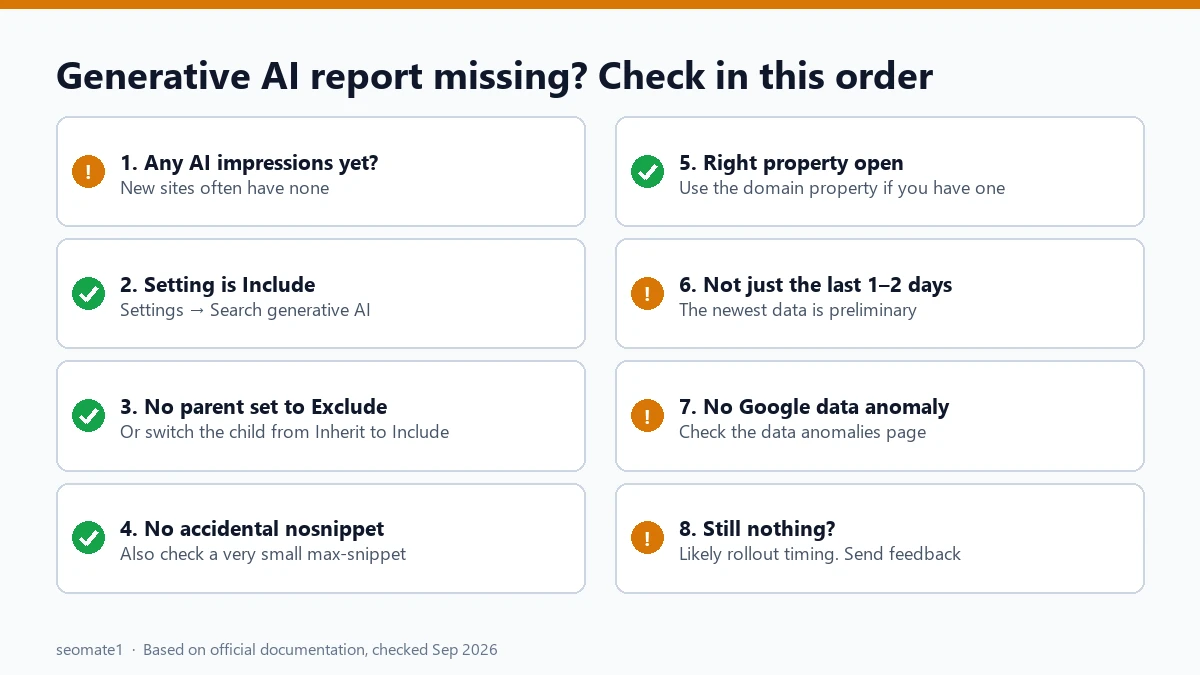
- Does the site get AI impressions at all? New sites often don’t yet.
- Is Settings → Search generative AI set to Include?
- Is any parent property set to Exclude?
- Do key pages use
nosnippetor a smallmax-snippet? - Are you in the right property (ideally the domain property)?
- Are you only looking at the last day or two?
- Does Google’s data anomalies page list an issue for those dates?
- If all of the above is fine, it may be rollout timing.
FAQ
Where is the generative AI report in Search Console?
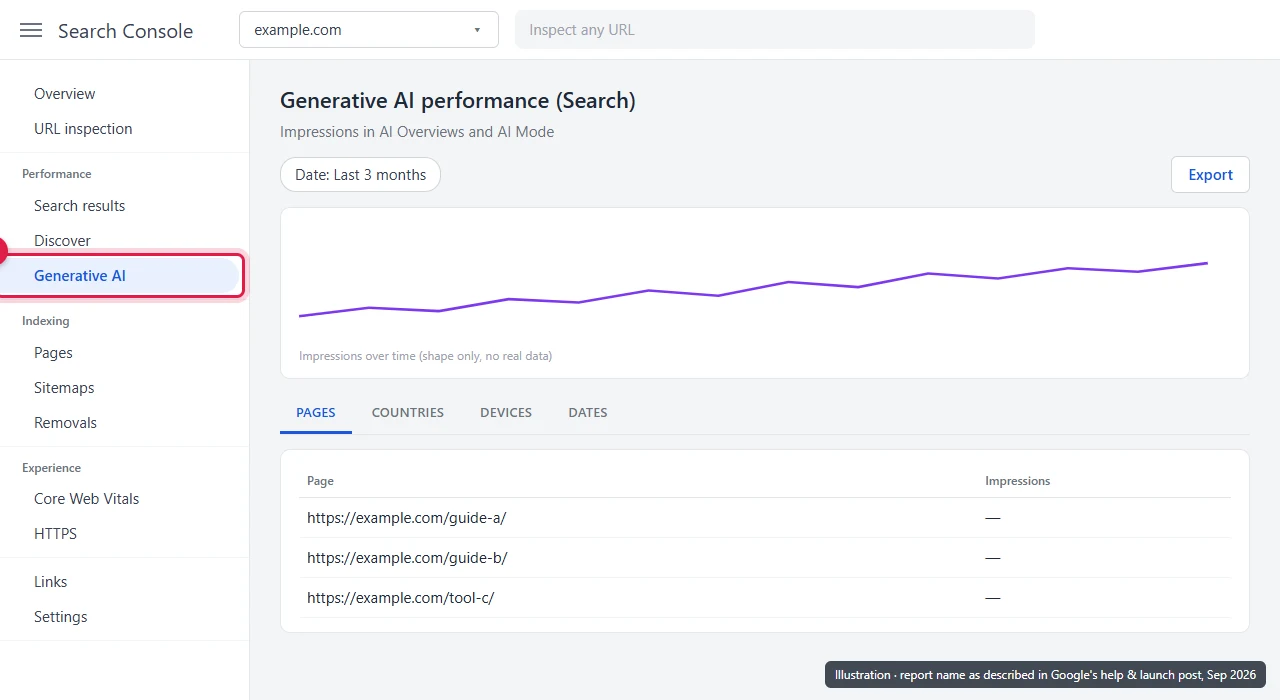
It sits in the Performance section of the left menu, alongside the other performance reports. Google’s launch post says there are separate generative AI views for Search and for Discover. If your site gets no Discover traffic, expect the Discover view to be empty.
Can I download the report data?
Yes. Once the report appears, you can export the generative AI data and join it with your Performance report to see each page’s share of AI impressions.
Why does the report show impressions but no clicks?
That’s how it’s built. It only reports impressions. Clicks from AI Overviews and AI Mode are counted in the main Performance report under the Web search type, together with regular results.
Will excluding my site affect my normal rankings?
Google says the generative AI control isn’t used as a ranking signal for other parts of Search. Your pages can still appear as regular blue links.
Last checked against Google’s documentation on 23 September 2026.
Make it easier to find our SEO, AI search and digital marketing coverage in Google.

Nadir Yaqoob
Nadir Yaqoob is the founder and editor of SEOMate1. He has more than 10 years of experience in SEO, and today focuses on AI search: helping SaaS and e-commerce brands stay visible in Google's AI Overviews and AI Mode, and turn search traffic into leads. He's based in Lahore, Pakistan.