
In Search Console, a property follows the Search generative AI setting of its closest parent that has changed its own setting. If no parent has changed it, the property follows the top-level domain. So if example.com is set to Exclude, then blog.example.com, http://example.com/ and https://example.com/business/ are all excluded too, unless one of them has its own setting. A child property stops inheriting as soon as its owner picks Include or Exclude for it.
This matters most on bigger sites, where different teams own different properties. One change at the top can switch off AI visibility for folders and subdomains nobody meant to touch.
Parent and child properties, in plain words
Google’s Search generative AI control help page defines two kinds of property:
- Parent property: “a higher-level property that has child property nested below it”. It can be a top-level domain, a subdomain property, or a URL-prefix property.
- Child property: “a lower-level, URL-prefix path property, or a domain property which is not the top-level, that’s nested under another property.”
In practice, any property that sits inside another one is a child of it. A property can be both: https://example.com/business/ is a child of example.com and a parent of https://example.com/business/cats/.
Google’s own examples
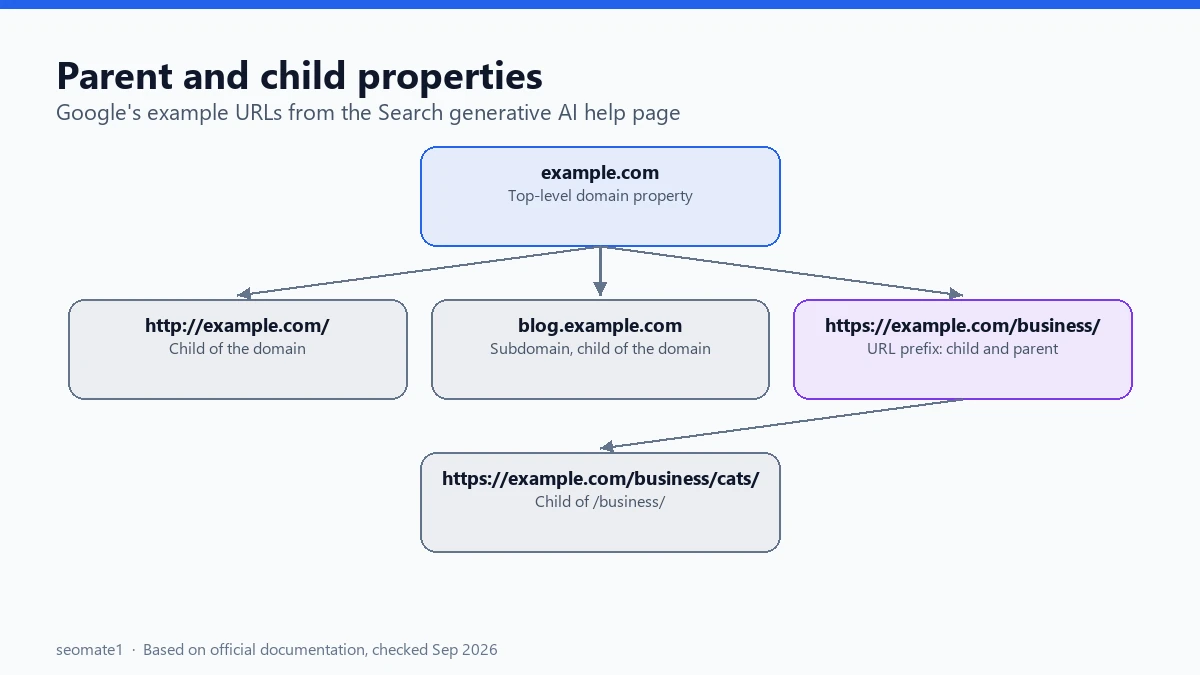
Google’s help page gives these parent-child pairs:
| Parent property | Its child properties |
|---|---|
example.com (top-level domain) |
https://example.com/business/, http://example.com/, blog.example.com |
https://www.example.com/ (URL prefix) |
https://www.example.com/business/ |
https://example.com/business/ (URL prefix) |
https://example.com/business/cats/ |
Two details in this table catch people out:
http://example.com/is a child ofexample.com. The old HTTP version of your site follows the domain’s setting, not its own.- Subdomains are children of the domain.
blog.example.cominherits fromexample.com, even if the blog is run by a different team or is verified as its own domain property.
How to work out which setting applies
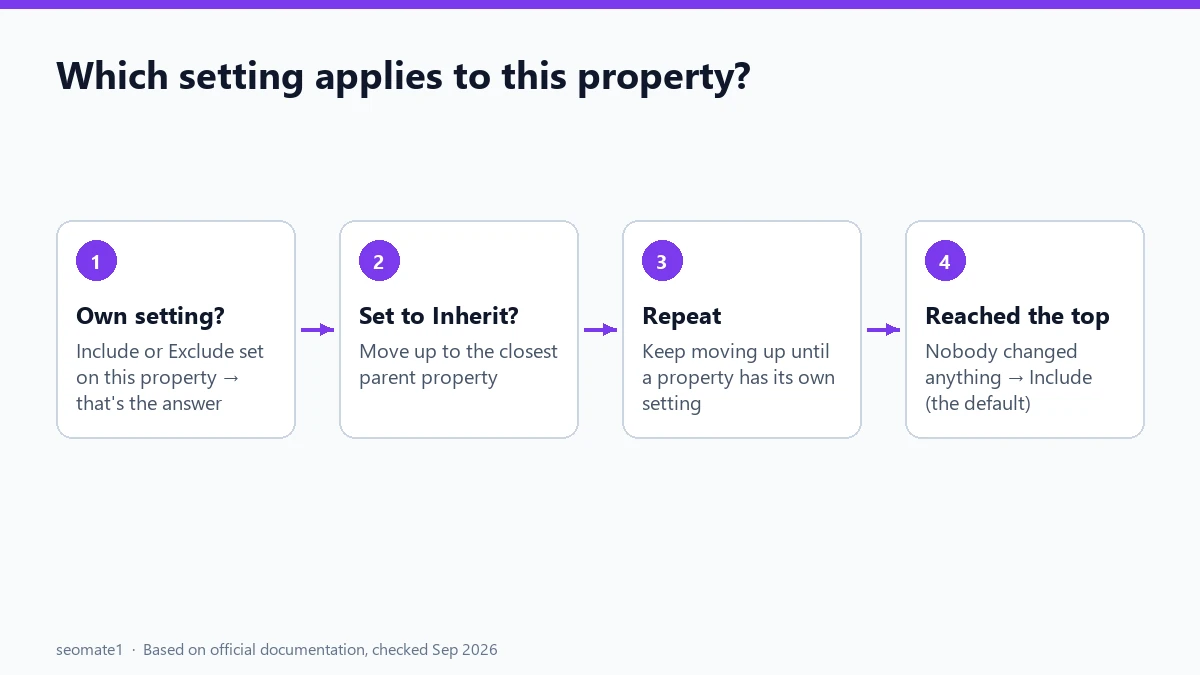
Use this rule for any property:
- Does the property have its own setting (Include or Exclude)? If yes, that’s the answer.
- If it’s set to Inherit control from parent, move up to its closest parent and ask the same question.
- Keep going up. If you reach the top-level domain and nobody has changed anything, the setting is Include, which is Google’s default.
Worked examples
Here are five situations and what happens in each. The URLs are examples.
| Setup | Which setting applies to https://example.com/business/cats/? |
|---|---|
| Nobody has changed anything | Include (the default) |
example.com set to Exclude |
Exclude, inherited from the domain |
example.com Exclude, /business/ set to Include |
Include, because /business/ is the closest parent with its own setting |
example.com Exclude, /business/cats/ set to Include |
Include, because it has its own setting |
/business/ set to Exclude, example.com left alone |
Exclude, inherited from /business/ |
And for a subdomain:
| Setup | Which setting applies to blog.example.com? |
|---|---|
| Nobody has changed anything | Include |
example.com set to Exclude |
Exclude, inherited |
example.com Exclude, blog.example.com set to Include |
Include, its own setting |
How to set a child property’s own setting
Google says the owner of a child property “can choose to follow its parent property’s Search generative AI control or change it for the specific child property and its subpages.”
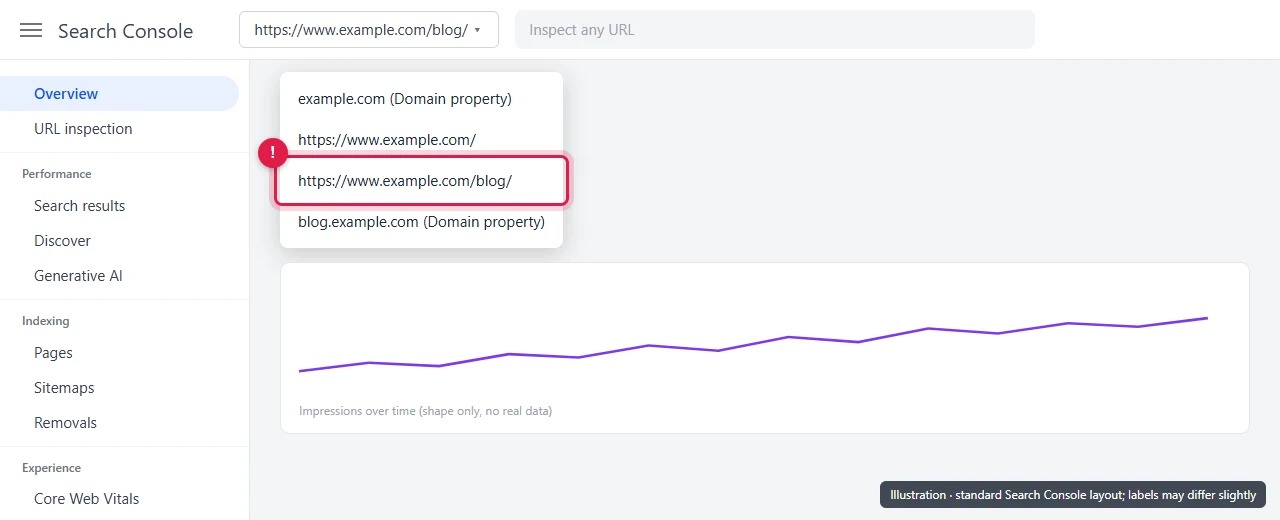
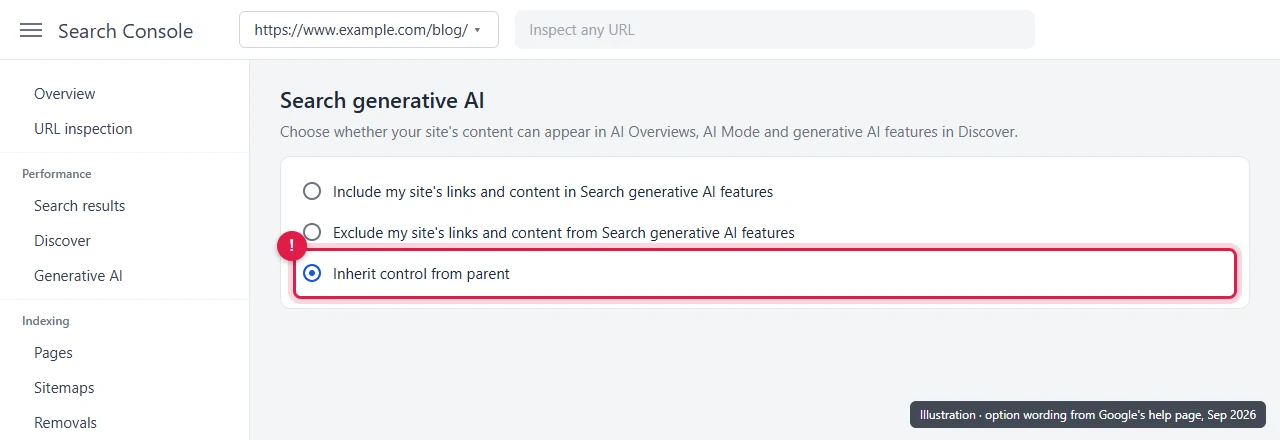
The screens below are illustrations based on the option wording in Google’s help page.
Step 1: Open the child property
Pick the child property from the property list at the top of Search Console. For example, pick https://www.example.com/blog/, not the domain property.
Step 2: Open the setting and choose
Go to Settings → Search generative AI. You’ll see three options:
- Include my site’s links and content in Search generative AI features
- Exclude my site’s links and content from Search generative AI features
- Inherit control from parent
Choosing Include or Exclude gives the child its own setting and stops inheritance. Choosing Inherit control from parent turns inheritance back on.
Google says changes generally take a few days to apply. Most exclusions happen within 1–2 days after the control goes live, and some content can take longer because of caching.
Audit every property before you change the top one
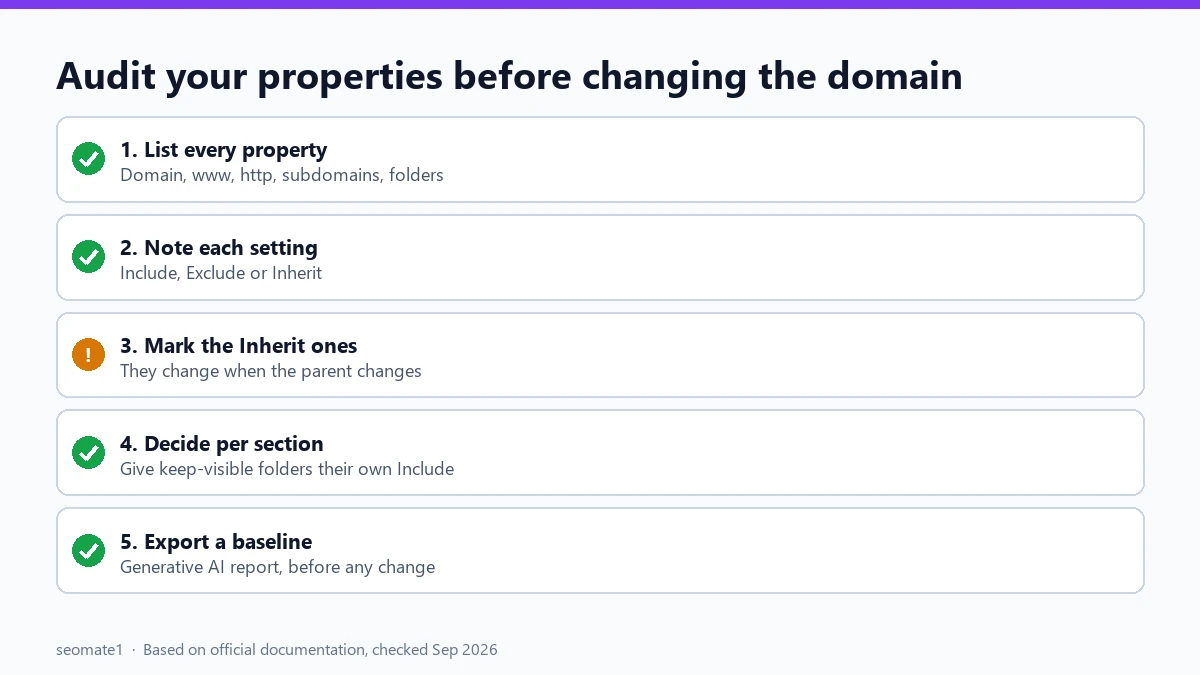
If you manage a site with many properties, check them all before changing the domain property. A 10-minute audit:
- List every property. Open the property list in Search Console and note each property for your site: domain,
www,http, subdomains, and folders. - Check each one’s setting. Open Settings → Search generative AI in each and write down whether it’s Include, Exclude, or Inherit.
- Mark the ones on Inherit. These will change when their parent changes.
- Decide per folder. If a section like
/shop/orblog.should stay visible in AI features, give it its own Include before you exclude the domain. - Export a baseline. Export your generative AI report before any change, so you can compare later. Here’s how to export it.
Common mistakes
- Only checking the property you use every day. A team that works in
https://www.example.com/blog/may never open the domain property, where the Exclude was set. - Forgetting the HTTP and www versions. They’re children of the domain and inherit from it.
- Assuming a separately verified subdomain is independent. In Google’s examples,
blog.example.comis still a child ofexample.com. - Expecting instant results. Allow a few days before judging whether a change worked.
FAQ
If I exclude a child property, does the parent change?
No. Inheritance only flows down. Excluding /blog/ doesn’t affect example.com or other folders.
Can two owners set different values?
Yes, on different properties. Each property keeps its own setting, and a child’s own setting wins over its parent’s. That’s why it helps to agree who owns which property.
Does this affect normal search results?
No. Google says the control isn’t used as a ranking or inclusion signal for other parts of Search. It only covers AI features. For the full picture, see what Include and Exclude change.
Why is my generative AI report empty after a parent change?
The report only covers sites that aren’t excluded. If a parent’s Exclude reached your property, that’s a likely cause. More in why the generative AI report isn’t showing.
Last checked against Google’s documentation on 24 September 2026.
Make it easier to find our SEO, AI search and digital marketing coverage in Google.

Nadir Yaqoob
Nadir Yaqoob is the founder and editor of SEOMate1. He has more than 10 years of experience in SEO, and today focuses on AI search: helping SaaS and e-commerce brands stay visible in Google's AI Overviews and AI Mode, and turn search traffic into leads. He's based in Lahore, Pakistan.