You can add Google’s Preferred Sources button to WordPress without a plugin by pasting two lines of HTML into a Custom HTML block. That covers one post. To show it after every post, add a short snippet to your child theme’s functions.php. To show it site-wide, put the same HTML in a footer or sidebar widget. All three methods are below, with the code, click tracking, and fixes for when the button doesn’t appear.
Before you start, check one thing. Search for your domain in Google’s source preferences tool (google.com/preferences/source). If your site isn’t listed there, the button can’t help yet. Here’s why a site doesn’t show up in Preferred Sources and what to do about it.
Which method should you use?
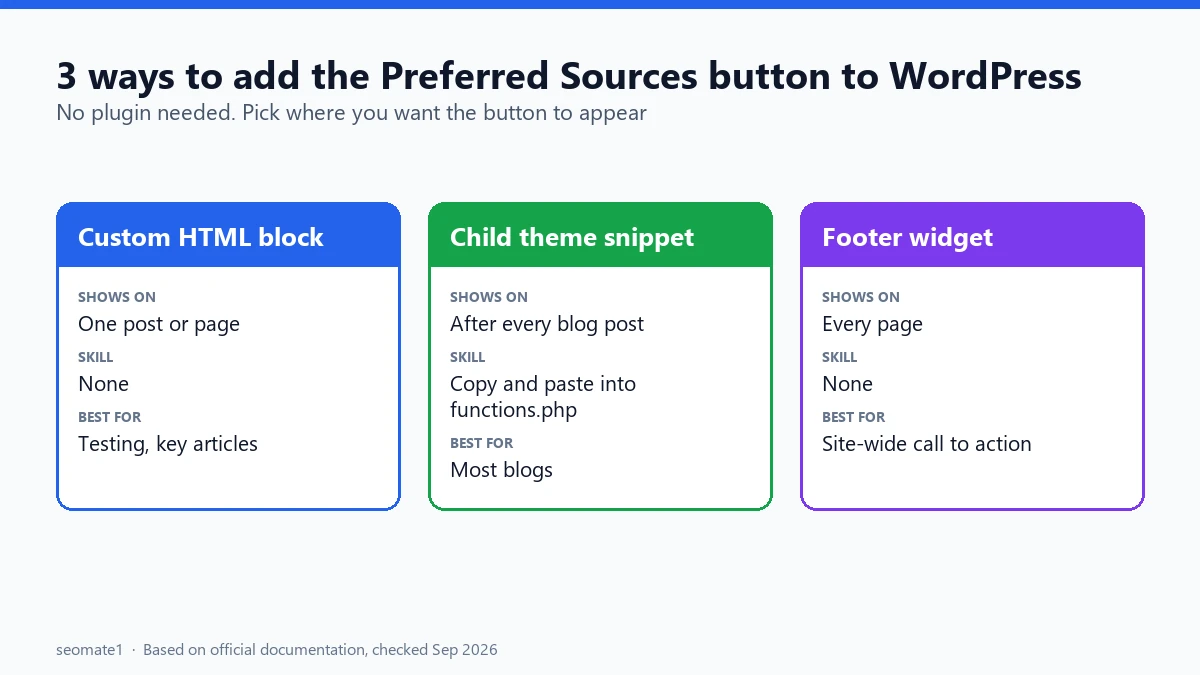
| Method | Where the button shows | Skill needed | Best for |
|---|---|---|---|
| Custom HTML block | One post or page | None | Testing, or a few key articles |
| Child theme snippet | After every blog post | Basic (copy and paste into a file) | Most blogs and news sites |
| Footer or sidebar widget | Every page of the site | None | A site-wide call to action |
| Plain link | Anywhere, even email | None | Sites that can’t add JavaScript |
Google’s Preferred Sources guide gives the code these methods use. The standard version has two parts. First, a script that loads the button:
<script async src="https://news.google.com/swg/js/v1/publisher.js"></script>
Second, a placeholder where the button appears:
<div google-add-preferred-source-btn></div>
Google says to put the script in the page <head>. In WordPress, the Custom HTML block and widget methods put it in the page body instead. The script is loaded with async, which works in practice. The child theme method is the only one that puts it in the head, exactly as Google describes.
Method 1: Add it to one post with a Custom HTML block
This is the fastest way and needs no code knowledge.
The images in this guide are illustrations of the WordPress block editor. Your screen may look slightly different depending on your WordPress version and theme.
Step 1: Open the post and add a block
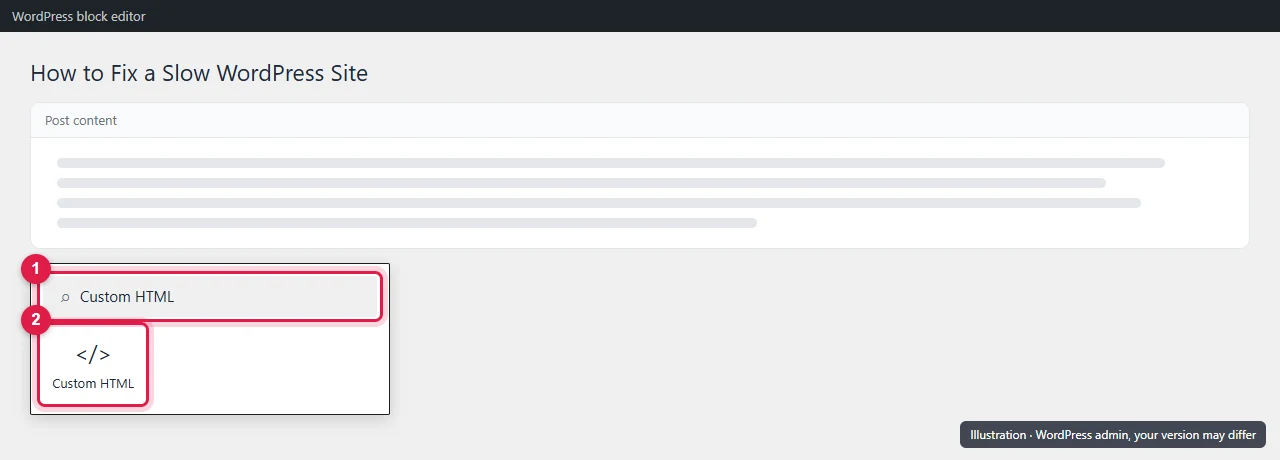
Open the post in the block editor. Click where you want the button, usually at the end of the article. Then click the + (block inserter) and type Custom HTML.
Step 2: Paste the code
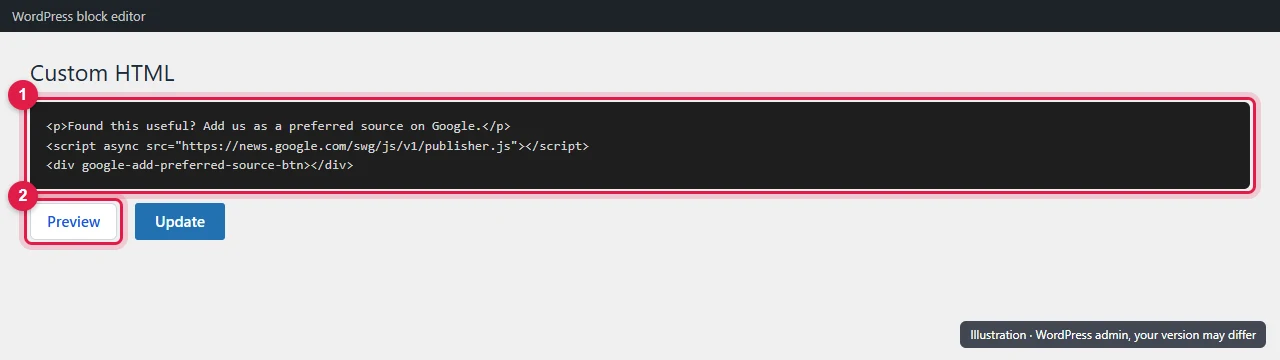
Paste both lines into the block. A short line of text above the button helps people understand why they should click it.
<p>Found this useful? Add us as a preferred source on Google.</p>
<script async src="https://news.google.com/swg/js/v1/publisher.js"></script>
<div google-add-preferred-source-btn></div>
Step 3: Preview, then update
Click Preview to check the button renders. Then click Update or Publish. If the button doesn’t show in the preview, jump to the troubleshooting section below.
Reuse it without pasting every time
If you want the button in several posts but not all, turn the block into a synced pattern. Select the block, open the block’s options menu (the three dots), and choose Create pattern. Give it a name and switch Synced on. You can then insert that pattern into any post. If you edit the pattern later, every post that uses it updates too.
Method 2: Add it after every post (child theme)
If you want the button at the end of every blog post, a small snippet does it automatically. Add it to a child theme, not your main theme. Otherwise, the next theme update will erase it.
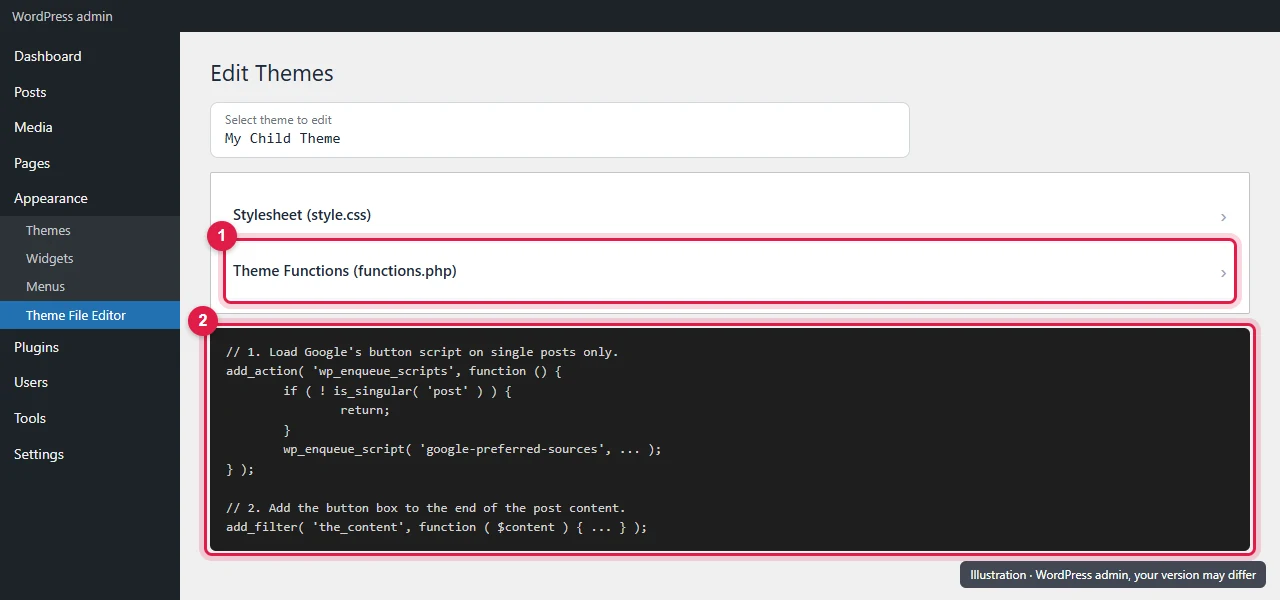
Paste this at the end of your child theme’s functions.php:
<?php
/**
 * Google Preferred Sources button after every blog post.
 * Paste into your child theme's functions.php.
 */

// 1. Load Google's button script on single posts only.
add_action( 'wp_enqueue_scripts', function () {
    if ( ! is_singular( 'post' ) ) {
        return;
    }
    wp_enqueue_script(
        'google-preferred-sources',
        'https://news.google.com/swg/js/v1/publisher.js',
        array(),
        null,
        array( 'strategy' => 'async' )
    );
} );

// 2. Add the button box to the end of the post content.
add_filter( 'the_content', function ( $content ) {
    if ( ! is_singular( 'post' ) || ! in_the_loop() || ! is_main_query() ) {
        return $content;
    }
    $box  = '<div class="preferred-source-box">';
    $box .= '<p>Found this useful? Add us as a preferred source on Google to see more of our guides.</p>';
    $box .= '<div google-add-preferred-source-btn></div>';
    $box .= '</div>';
    return $content . $box;
} );
If your functions.php already starts with <?php, don’t paste that first line again.
What this does:
- Part 1 loads Google’s script in the page head, only on blog posts, with the
asyncloading that Google’s own snippet uses. Thestrategyoption needs WordPress 6.3 or newer. - Part 2 adds the button to the end of each post. The checks make sure it appears once, in the main article, and not in sidebars, feeds, or other lists of posts.
We ran the snippet through a PHP syntax parser to check the code is valid. It isn’t tested on every theme, so check a post after adding it.
Tip: Edit functions.php over FTP or your host’s file manager if you can, rather than in the WordPress dashboard. If a typo breaks the site, you can fix the file directly. With the dashboard editor, a fatal error can take the site down until the file is fixed.
Method 3: Add it site-wide in a widget
To show the button on every page, including your homepage and category pages, use a widget.
Classic themes: go to Appearance → Widgets. Add a Custom HTML widget to your footer or sidebar and paste the same code as in Method 1.
Block themes (such as Twenty Twenty-Four): go to Appearance → Editor, open Patterns or your Footer template part, and add a Custom HTML block there.
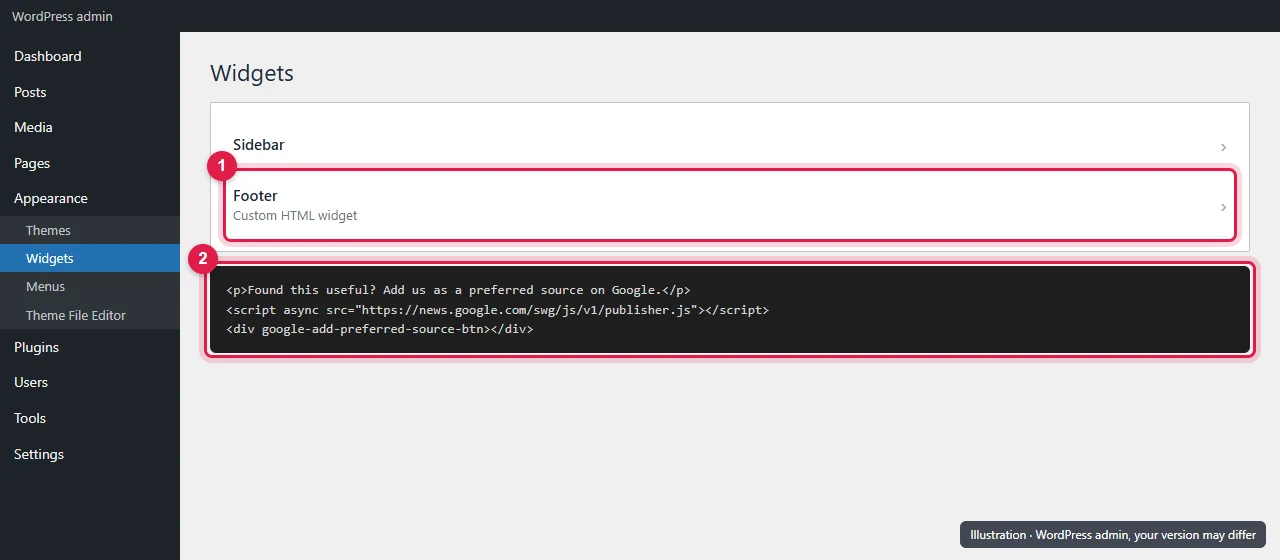
A footer button is seen by more people, but it’s less persuasive than a button placed right after a helpful article. Many sites use both: the snippet after posts, plus a smaller link in the footer.
Method 4: A plain link (no JavaScript at all)
If you can’t add scripts, or you want the button in an email or on social media, use Google’s link format instead:
<a href="https://www.google.com/preferences/source?q=yourdomain.com">
  Add us as a preferred source on Google
</a>
Replace yourdomain.com with your own domain. The reader lands on Google’s source preferences page, where they confirm the choice. It takes one more click than the button, but it works anywhere.
Track clicks in GA4
Google doesn’t give you a report of who added your site. You can still count how many people click the button. Add this small script next to the button code, or load it site-wide:
<script>
document.addEventListener("click", function (event) {
  if (!event.target.closest("[google-add-preferred-source-btn]")) return;
  if (typeof gtag === "function") {
    gtag("event", "preferred_source_click", { page_path: location.pathname });
  } else if (window.dataLayer) {
    window.dataLayer.push({ event: "preferred_source_click", page_path: location.pathname });
  }
});
</script>
It sends a preferred_source_click event to GA4 when someone clicks the button. It works with a gtag.js install or with Google Tag Manager. We tested it in a simulated page: a button click sent exactly one event, and a click elsewhere sent nothing.
A click is not the same as a completed selection. The reader still has to confirm on Google’s page, so treat this number as “people who started”, not “people who finished”.
Troubleshooting: the button doesn’t appear
Work through these in order:
- Your site isn’t in the source preferences tool. Search for your domain in the tool. If it’s missing, the button won’t work for you yet.
- A caching or speed plugin is delaying the script. Plugins that “delay” or “defer” JavaScript can stop the button from loading until the reader scrolls or clicks. Examples are LiteSpeed Cache, WP Rocket, and similar tools. Add
news.google.com/swg/js/v1/publisher.jsto the plugin’s list of excluded scripts, then clear the cache. - You’re testing with an ad blocker on. Some blockers hide third-party buttons. Test in a private window with extensions turned off.
- Your site has a Content Security Policy (CSP). If your host or a security plugin sets a CSP header, it must allow scripts from
https://news.google.com. - The code landed in the wrong place. In the block editor, make sure you used a Custom HTML block, not a Paragraph or Code block. Those show the code as text instead of running it.
- Your blog is in a subfolder. Preferred Sources only works for domains and subdomains. A blog at
example.com/blogcan’t have its own button, though the button forexample.comworks there.
FAQ
Do I need a plugin for this?
No. Google doesn’t require one, and the code above works on any WordPress site. Several third-party plugins exist, but they add the same two lines for you.
Will the button slow my site down?
The script loads with async, so it doesn’t block the page from rendering. Loading it only on blog posts (Method 2) keeps it off pages where it isn’t needed.
Can I show the Search Profile badge too?
Yes, if you’ve claimed a Search profile. Google asks you to keep the two clearly different. Here’s how the Preferred Sources button compares with the Search Profile badge, including where to place each one.
Does the button still show AI Mode badges if I exclude my site from AI features?
The button still works, but the “preferred” label in AI Mode and AI Overviews needs your site to be included in Search generative AI features. See what changes when you exclude your site.
Last checked against Google’s documentation on 24 September 2026. Code syntax-checked and click tracking tested on 24 September 2026.
Make it easier to find our SEO, AI search and digital marketing coverage in Google.

Nadir Yaqoob
Nadir Yaqoob is the founder and editor of SEOMate1. He has more than 10 years of experience in SEO, and today focuses on AI search: helping SaaS and e-commerce brands stay visible in Google's AI Overviews and AI Mode, and turn search traffic into leads. He's based in Lahore, Pakistan.