The Search Profile badge sends visitors to your Google Search profile so they can follow you, which makes your content more likely to show up in their Discover feed. The Preferred Sources button asks visitors to pick your website as a preferred source, so your pages are more likely to show in their Top Stories. One is about you as a creator. The other is about your website.
Both are small pieces of HTML you can add to your site. They look similar, and Google updated its guidance for both within a few days of each other in September 2026, so it’s easy to mix them up. This page explains what each one does, who can use it, and when it makes sense to add both.
The difference at a glance
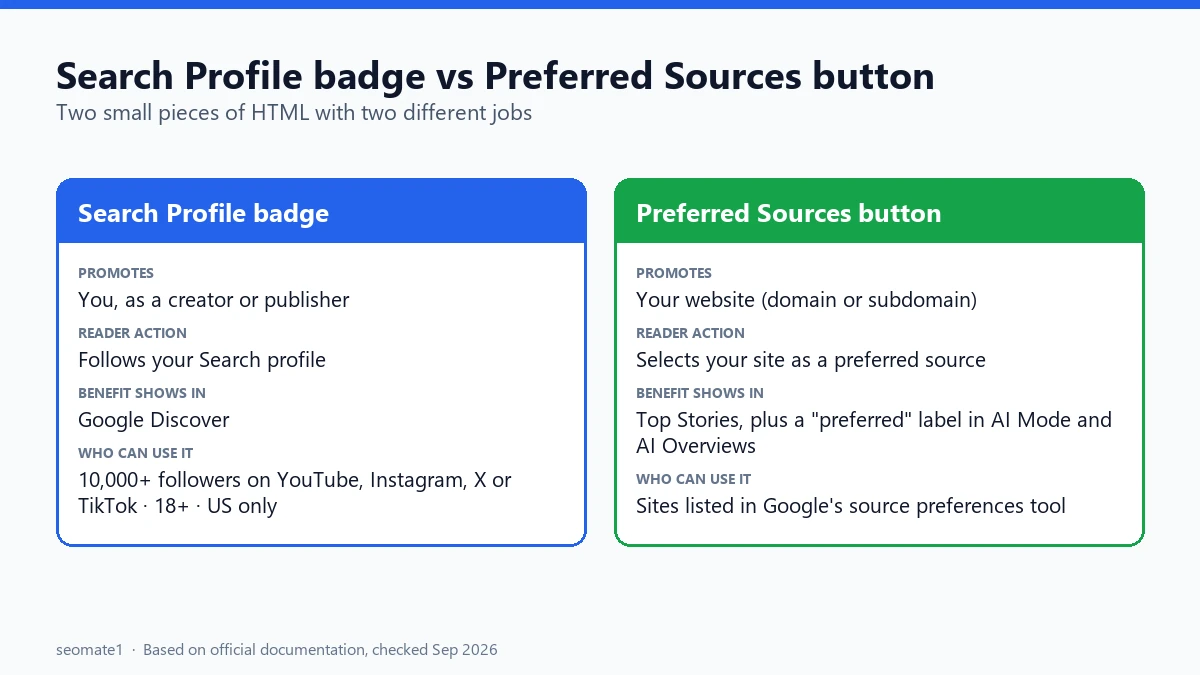
| Search Profile badge | Preferred Sources button | |
|---|---|---|
| What it promotes | You (a creator or publisher profile) | Your website (domain or subdomain) |
| Where the link goes | profile.google.com/@yourhandle |
Google’s source preferences page for your site |
| What the reader does | Follows your Search profile | Selects your site as a preferred source |
| Where it helps | Google Discover | Top Stories, plus a “preferred” label in AI Mode and AI Overviews |
| Who can use it | People who have claimed a Search profile | Sites that appear in the source preferences tool |
| Availability | United States only (for now) | Top Stories in all languages where Search is available; AI Mode and AI Overviews wherever those features exist |
What the Search Profile badge does
A Search profile is a single page on Google that pulls together your content from different places, such as your website, YouTube, Instagram, TikTok, X, and Facebook. Google’s Search profile documentation says that when readers follow your profile, your linked content becomes more likely to appear for them in Google Discover. Those same accounts can now be added to Search Console, which shows data the apps’ own analytics can’t, such as the Google searches that led people to your YouTube videos.
The badge is simply a link to that profile. It gives visitors on your website an easy way to follow you.
Who can get a Search profile
This is where most people get stuck. According to Google’s help page on Search profiles, you need:
- at least 10,000 followers or subscribers on at least one of YouTube, Instagram, X, or TikTok
- to be 18 or older
- content that follows Google’s community guidelines
Search profiles are also only available in the United States right now. So a small new blog with no large social following can’t use this badge yet, no matter how good the website is. If you are a YouTube creator who qualifies, Search Console can also show you how your Shorts and long videos perform in Google Search.
You claim a profile at profile.google.com/claim by signing in and connecting a qualifying social account. Google checks eligibility through that connected account. It doesn’t use Search Console for this.
The badge code
Replace example with your own handle:
<a href="https://profile.google.com/@example"
   aria-label="Find us on Google Search">
  <img src="/path/to/google-search-badge.svg" alt="Google Search">
</a>
A plain text link also works:
<a href="https://profile.google.com/@example">Find us on Google Search</a>
Download the official badge files from the Search profile documentation page. The download includes dark and light versions, plus higher- and lower-emphasis styles. Google’s brand rules say don’t stretch, rotate, or recolour the badge, and keep the tap area at least 44×44 pixels on the web.
What the Preferred Sources button does
Preferred Sources lets a Google user choose the sites they want to see more of in news results. Google’s Preferred Sources guide says that when someone selects your site, your content is more likely to appear in their Top Stories, marked with a “preferred” badge. In AI Mode and AI Overviews, your content can also be marked with that badge for the same user.
The button just makes that choice easier. The reader clicks it, adds your site, and is sent back to your page.
Why bother? Google said in its May 2026 announcement that people are twice as likely to click through to a site they’ve marked as preferred. By then, users had already picked more than 345,000 different sources.
How a reader adds your site
Readers can do this with or without your button:
- Go to Google’s source preferences page (
google.com/preferences/source). - Type the site’s name or domain in the search box.
- Select the site to add it as a preferred source.
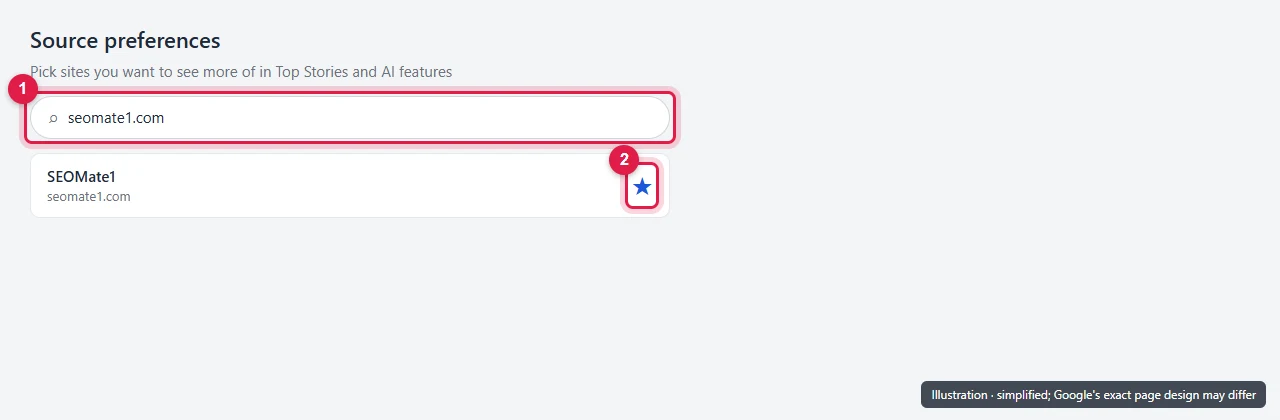
The choice is tied to the reader’s Google account. It only changes what that person sees, not what everyone else sees.
Who can use it
Two conditions matter:
- Your site must appear in Google’s source preferences tool. Search for your domain in the tool. If it doesn’t show up, the button won’t help yet. Google’s announcement says any website that publishes fresh content is eligible, so a site that rarely posts new pages may not be listed. If yours is missing, check why a site doesn’t show up in Preferred Sources.
- It must be a domain or subdomain.
www.example.comandnews.example.comcan qualify. A folder likeexample.com/blogcan’t.
There’s also a detail most guides skip. If you want the “preferred” label to appear in AI Mode and AI Overviews, your site must be included in the Search generative AI control in Search Console. If you’ve set that control to exclude, you lose the AI Mode and AI Overviews part of this benefit. Our guide to the Search generative AI control’s Include and Exclude options explains the other side effects too.
The button code
The standard version is two lines:
<script async src="https://news.google.com/swg/js/v1/publisher.js"></script>
<div google-add-preferred-source-btn></div>
You can add data-theme="dark" or data-theme="light" and a language code such as data-lang="en" to the div.
If you’d rather not load a script, use a normal link instead:
<a href="https://www.google.com/preferences/source?q=https://www.example.com">
  Add us as a preferred source on Google
</a>
The same link works outside your website too. Put it in your email newsletter, your social media bio, or the end of a YouTube description. Those are the places where your most loyal readers already are. On WordPress, you can also add the Preferred Sources button without a plugin.
Which one should you add?
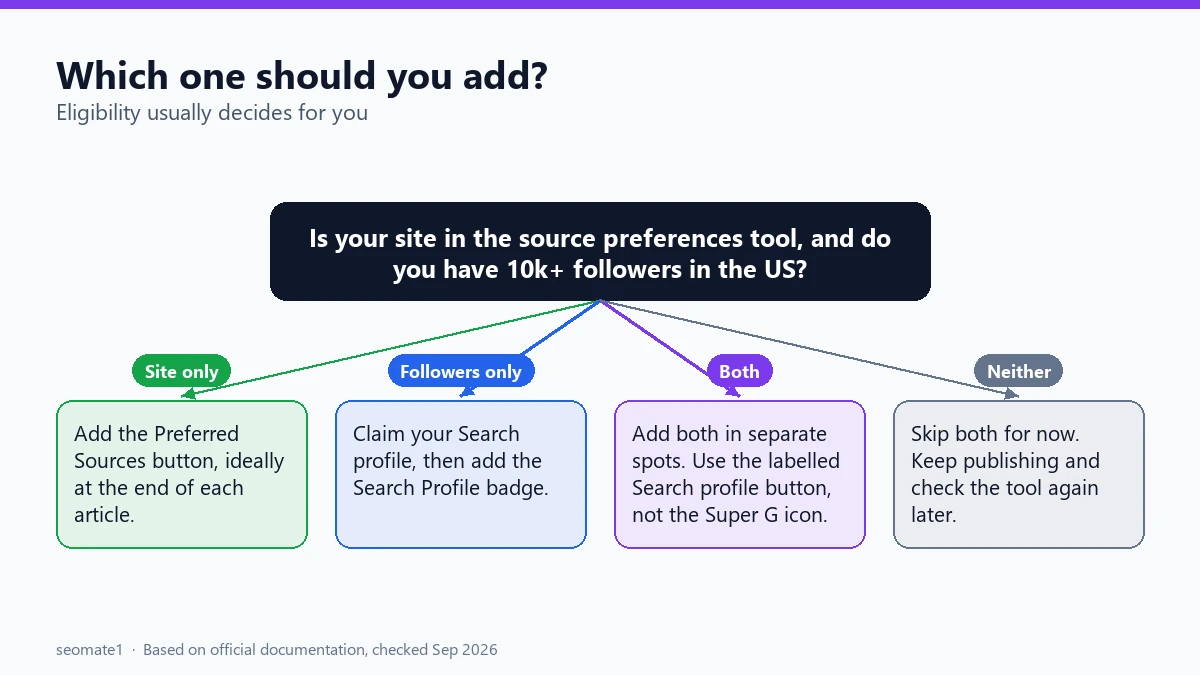
For most websites, eligibility decides this for you.
- You run a website that publishes news or regular articles, and you have no big social following. Add the Preferred Sources button, if your site shows up in the source preferences tool.
- You’re a US creator with 10,000+ followers on YouTube, Instagram, X, or TikTok, and you mostly publish there. The Search Profile badge is the better fit.
- You’re both, such as a US publisher with a large YouTube channel. You can add both. Just follow Google’s rule below.
- Your site isn’t in the source preferences tool and you don’t qualify for a profile. Neither will do anything useful yet. Focus on publishing and check the tool again in a few months.
Using both on the same page
Google allows both on one site, with two conditions from the Search profile guidelines:
- Use the higher-emphasis Search profile button with its text label, so readers can tell it apart from the Preferred Sources badge.
- Don’t use the “Super G” icon for the Search profile when it sits next to the Preferred Sources badge.
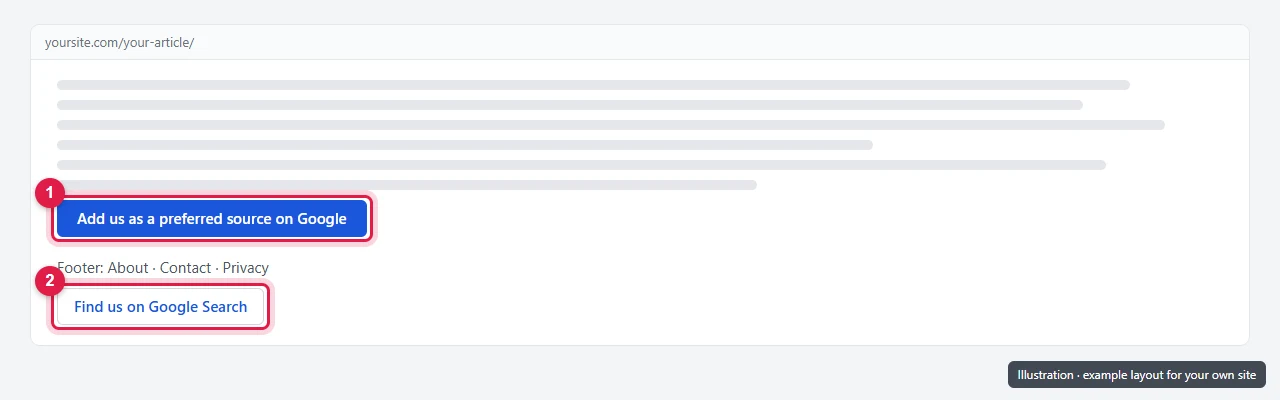
In practice, keep them in separate spots. Put the Preferred Sources button at the end of each article. That’s where a happy reader decides whether to come back. Put the Search Profile badge in the footer or on your About page, next to your other social links.
Common mistakes
- Adding the Preferred Sources button to a subfolder site. If your blog lives at
example.com/blog, the button can’t point to that folder. It works at the domain or subdomain level only. - Adding the badge before claiming a profile. The link will go nowhere useful. Claim first, then add the badge.
- Expecting a ranking boost. Neither Google page says these improve rankings for everyone. They only change what people who follow you, or choose you, are more likely to see.
- Excluding your site from generative AI features without realising the side effect. You keep the Top Stories benefit, but lose the “preferred” label in AI Mode and AI Overviews.
FAQ
Does the Preferred Sources button help me rank higher?
Google’s guide doesn’t describe it as a ranking factor. It affects what the people who selected your site are more likely to see in Top Stories and AI features.
How do I get my site listed in the source preferences tool?
There’s no form to submit. Google says any website that publishes fresh content is eligible. Keep publishing new, useful pages, then search for your domain in the tool again after a few weeks.
Can I use the Search Profile badge outside the US?
Not yet. Google says Search profiles are currently only available in the United States.
Do I need a plugin for either one in WordPress?
No. Both are plain HTML. You can paste them into a Custom HTML block or your theme’s footer.
Last checked against Google’s documentation on 23 September 2026. Both features are new, so we’ll update this page when Google changes them.
Make it easier to find our SEO, AI search and digital marketing coverage in Google.

Nadir Yaqoob
Nadir Yaqoob is the founder and editor of SEOMate1. He has more than 10 years of experience in SEO, and today focuses on AI search: helping SaaS and e-commerce brands stay visible in Google's AI Overviews and AI Mode, and turn search traffic into leads. He's based in Lahore, Pakistan.