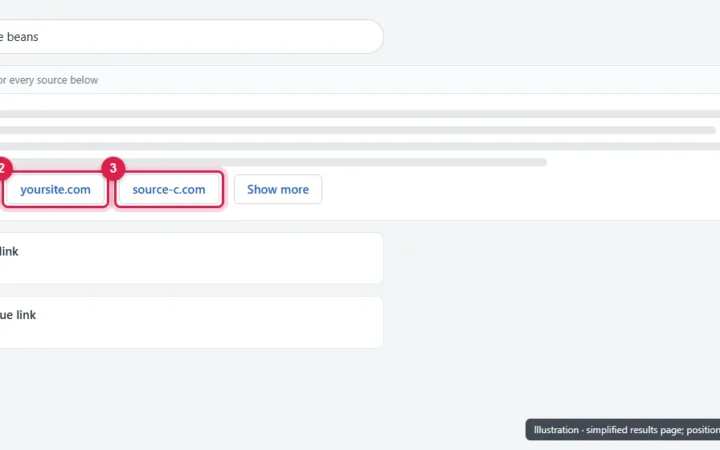
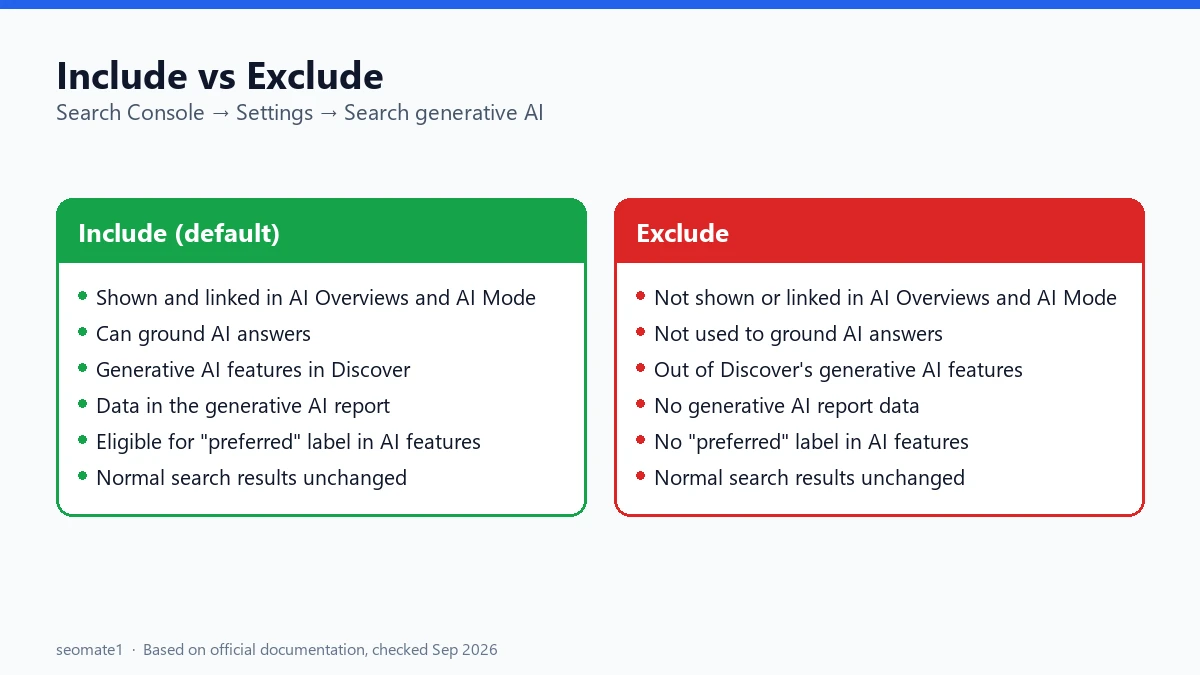
Include (the default) lets your site’s content appear in Google’s AI Overviews, AI Mode, and generative AI features in Discover, both as links and as source material for the AI answer. Exclude stops your content from showing, being linked, or being used to ground those answers. It doesn’t remove your pages from normal search results, and Google says it isn’t used as a ranking signal.
The setting is in Search Console under Settings → Search generative AI. Google rolled it out to all websites worldwide by 31 August 2026. Before you switch it, read the side effects below. Some of them aren’t obvious.
This setting is for website owners. If you’re a searcher who wants to see fewer AI Overviews, this isn’t the setting you need.
The three options
Google’s help page lists three choices:
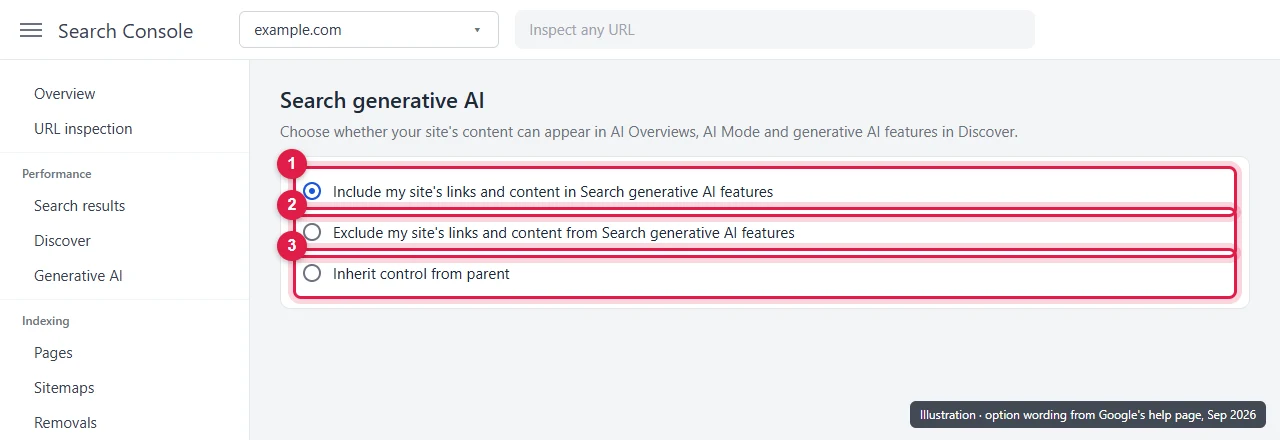
- Include my site’s links and content in Search generative AI features. This is the default.
- Exclude my site’s links and content from Search generative AI features.
- Inherit control from parent. The property follows whatever its parent property is set to. You only see this option if the property has a parent.
Most of this article compares the first two. The third one matters if you have more than one Search Console property for the same site (see the inheritance section below).
How to change the setting, step by step
The screens below are illustrations drawn from the option wording on Google’s help page. The layout of your Search Console may differ slightly.
Step 1: Open the right property
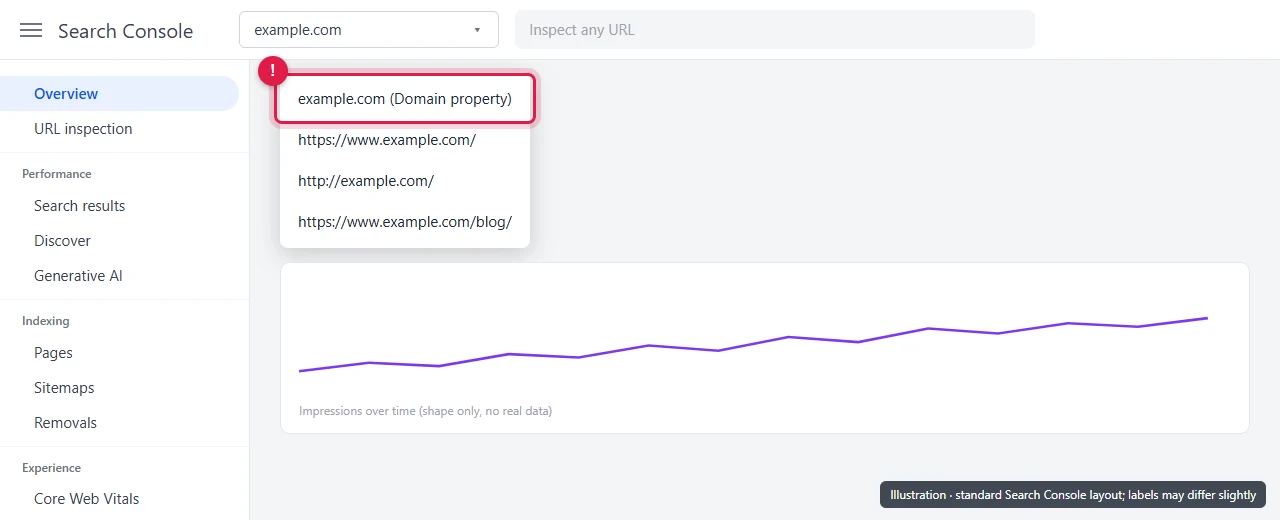
Click the property name at the top of Search Console and pick the site you want to change. If you have a domain property, it covers every version of the site. Changing it can also affect child properties set to inherit.
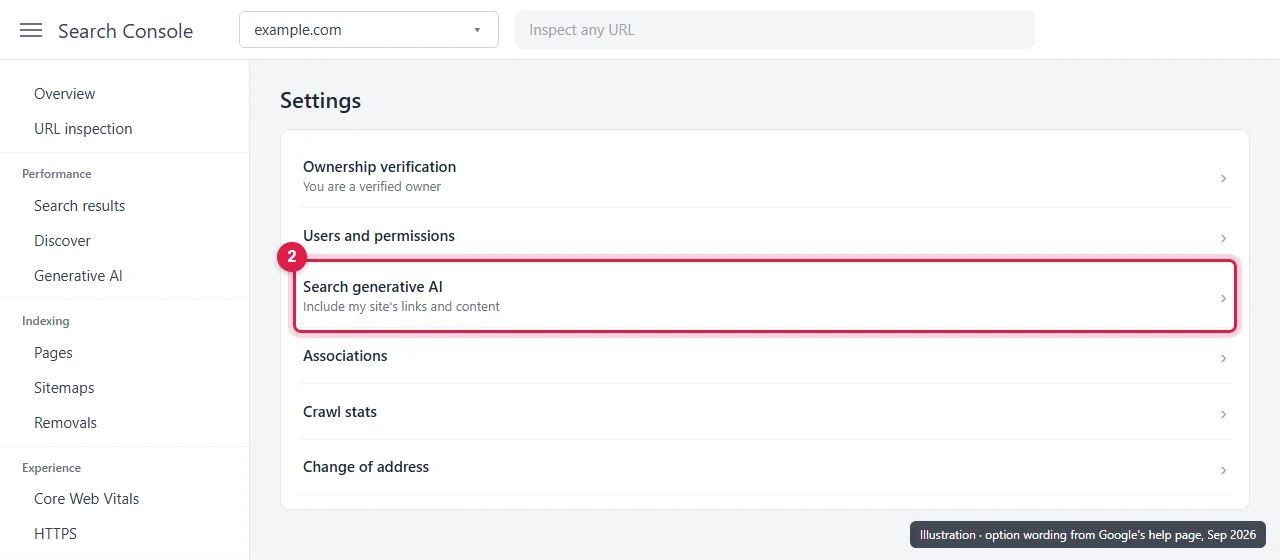
Step 2: Go to Settings → Search generative AI
Click Settings at the bottom of the left menu. Then click Search generative AI.
Step 3: Choose your option
Pick one of the three options. Google says a change generally takes a few days to take effect.
Why Google added this control
The control came out of UK regulation. On 3 June 2026, the UK’s Competition and Markets Authority (CMA) required Google to let publishers opt out of AI search features such as AI Overviews and AI Mode while keeping their normal search listings. TechCrunch reported that Google would test the toggle in the UK first and then roll it out globally. Google’s help page says the worldwide rollout was complete on 31 August 2026.
Include vs Exclude at a glance
| Include (default) | Exclude | |
|---|---|---|
| Shown and linked in AI Overviews | Yes | No |
| Shown and linked in AI Mode | Yes | No |
| Generative AI features in Discover | Yes | No |
| Used to ground AI answers | Yes | No |
| Regular search results (blue links) | Yes | Yes, unchanged |
| Used as a ranking signal | No | No |
| Stops AI model training | No | No (use Google-Extended) |
Everything in this table comes from Google’s Search generative AI control help page.
What Exclude does and doesn’t do
What it does
Google’s wording is that Exclude prevents your content “from being visible to users in Search generative AI features, including being linked to within these features and helping with grounding AI responses”.
In plain terms, three things stop:
- Your pages stop appearing as links in AI Overviews and AI Mode.
- Your content stops being used as a source for the AI’s answer.
- You stop getting impressions and clicks from those features.
What doesn’t change: your pages stay indexed and can still appear as normal results. Google is clear that this control “isn’t used as a ranking or inclusion signal affecting other parts of Search”.
What it doesn’t do
This is where most confusion comes from. Excluding your site:
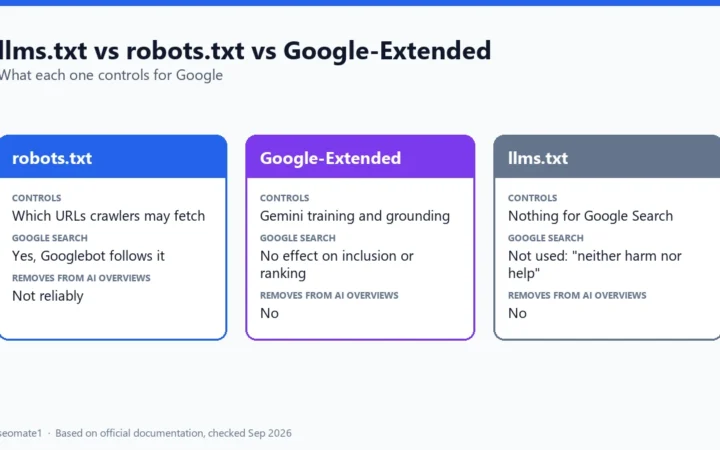
- Does not stop AI training. To limit your content being used to train Gemini models, use the
Google-Extendedtoken in robots.txt. Google says Google-Extended doesn’t affect inclusion or ranking in Search. It’s easy to mix these up, so here’s what llms.txt, robots.txt and Google-Extended each control. - Does not remove your pages from Google. For that, you’d use
noindex. - Does not remove similar content. Google notes that content from other sites will still appear in AI features, “and it may appear similar to yours”.
- Does not override other Google services. It doesn’t change your choices for things like Merchant Center or Google Ads.
- Does not stop all use. Google says it doesn’t stop content being used to improve how Search understands language.
Side effects to know before you exclude
Two knock-on effects are easy to miss.
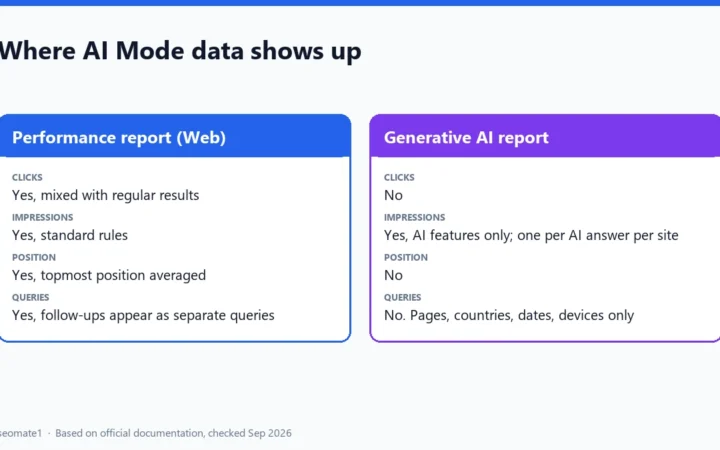
1. Your generative AI report goes quiet. The generative AI performance report only shows data for sites that aren’t excluded. Once you exclude, you lose that visibility data too. It’s one of the common reasons the generative AI report goes missing.
2. You lose the “preferred” label in AI features. Google’s Preferred Sources guide says your site must be included in Search generative AI features to be shown as a preferred source there. You keep the Top Stories benefit, but not the AI Mode and AI Overviews one. If you’re using Google’s reader buttons, see how the Preferred Sources button compares with the Search Profile badge.
How long a change takes
Google says it “generally takes a few days” after you change the setting. Content is excluded within 1–2 days after the control goes live. Some content may take longer because of caching and how changes spread across Google’s systems.
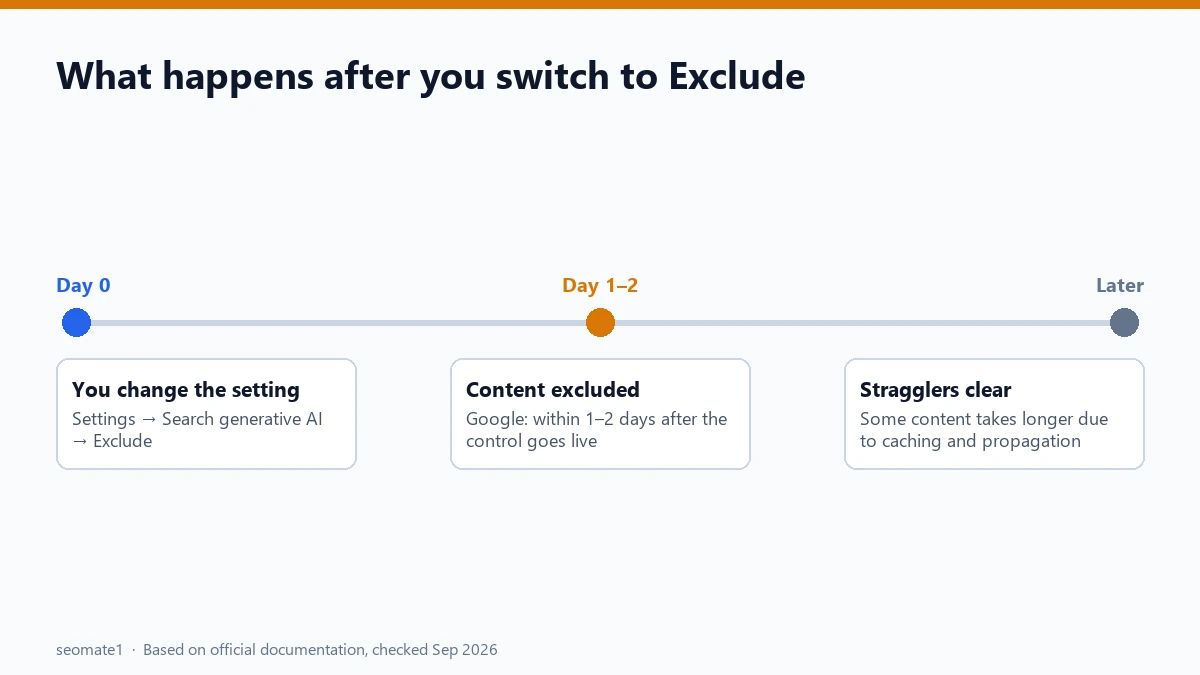
So if you switch to Exclude and still see your site in an AI Overview the next morning, that’s expected. Give it several days before you assume something is wrong.
How the setting passes to other properties
If you have several Search Console properties for one site, the setting can pass down from one to another.
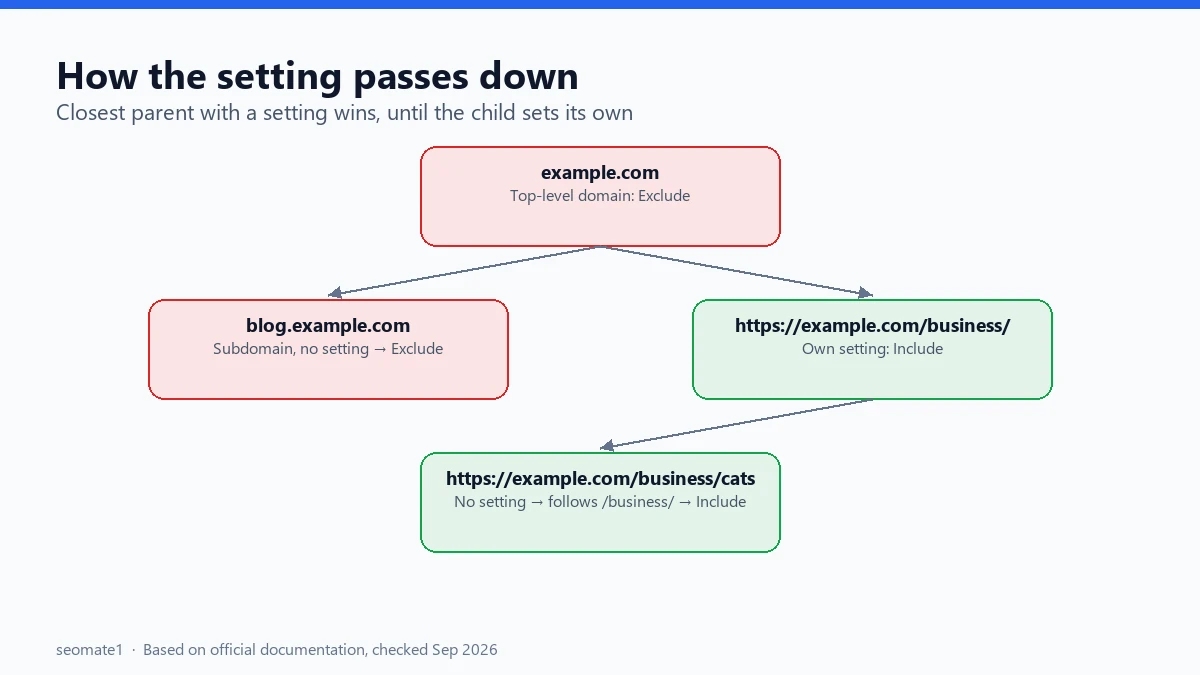
- A parent property can be a top-level domain (
example.com), a subdomain (blog.example.com), or a URL-prefix property. - A child property is a lower path or subdomain inside it.
- A child follows its closest parent that has a setting. If no parent has one, it follows the top-level domain.
- The child’s owner can choose Include or Exclude for that property, which stops the inheritance. Choosing Inherit control from parent turns it back on.
This matters in bigger companies. One team can exclude the main domain, and every blog or country folder without its own setting is excluded too. The rules get more detailed with subdomains, which we cover in how inheritance works for subdomains and URL-prefix properties.
Before you switch to Exclude
A short checklist, so you don’t lose data or surprise your team:
- Export the generative AI report first. After you exclude, it stops collecting data for your site, so this export is your baseline. Here’s how to export it and join it with your click data.
- List your child properties. Check which ones are set to Inherit, because they’ll switch to Exclude with the parent.
- Write down the date you changed it. You’ll need it later when you compare traffic before and after.
- Tell anyone else who manages the site. A domain-level change can affect folders or subdomains that other teams look after.
Which setting should you choose?
Google doesn’t recommend one or the other. It depends on what you want from Google.
Keep Include if:
- you want visibility and some traffic from AI Overviews and AI Mode
- you want data in the generative AI report
- you want the “preferred” label for readers who choose your site
- your content is free to read anyway
Consider Exclude if:
- your business depends on people reading the full content on your site, and AI summaries reduce that
- you have licensing or legal reasons not to have your content summarised
- you’ve measured a real drop in clicks on pages that show up in AI answers, and decided the visibility isn’t worth it
If you’re unsure, a middle path is to keep Include for the site and use nosnippet or max-snippet on specific pages. Google’s robots meta tag docs say these limit how content is used as direct input for AI Overviews and AI Mode. Note that they also affect normal search snippets, which the site-wide control doesn’t.
Other controls compared
| Control | Affects AI Overviews / AI Mode | Affects normal results | Affects AI training |
|---|---|---|---|
| Search generative AI: Exclude | Yes (whole property) | No | No |
nosnippet |
Yes (that page) | Yes, removes the snippet | No |
max-snippet |
Limits it (that page) | Yes, shortens the snippet | No |
Google-Extended in robots.txt |
Not documented as affecting these | No | Yes, for Gemini training |
noindex |
Yes, page leaves Search | Yes, page leaves Search | No |
FAQ
How do I remove a single URL from Google Search?
That’s a different task. Add a noindex tag to the page to keep it out of Google Search. For an urgent, temporary block, use the Removals tool in Search Console. The Search generative AI control only affects AI features, not normal results.
Will excluding my site hurt my rankings?
Google says the control isn’t used as a ranking or inclusion signal for other parts of Search. Your normal results aren’t meant to change. You’ll lose any traffic you were getting from AI features themselves.
Can I exclude only some pages?
The control works per property. To limit single pages, use nosnippet or max-snippet, or set up a separate URL-prefix property for a folder and set its own control.
Can I switch back to Include later?
Yes, you can change the setting again at any time. Google’s help page gives a timeline for excluding content, but not for bringing it back. Our reading is that returning will also take at least a few days, since the same caching applies. Treat that as an estimate, not a documented figure.
Last checked against Google’s documentation on 23 September 2026.
Make it easier to find our SEO, AI search and digital marketing coverage in Google.

Nadir Yaqoob
Nadir Yaqoob is the administrator and SEO contributor at SEOMate1, covering SEO, AEO, GEO, AI search, software, and digital marketing. I write practical, research-driven content on search strategies, emerging technologies, and digital workflows to help businesses improve their online visibility and growth.